Every guide pairs numbered steps with a cropped screenshot of the exact part of the app you will use. Read a guide, then try the same steps in your own workspace. Start with a small book, check it, then grow it.
Screenshots were captured from Puzzle Pro on October 17, 2026. Your choices can differ with book type and plan. Where the app shows a message, the message wins over anything written here.
Get started
Start here: your first book in five moves
You will make a small Word Search book, look it over, save it, and see where publishing files come from. Plan on about ten minutes.
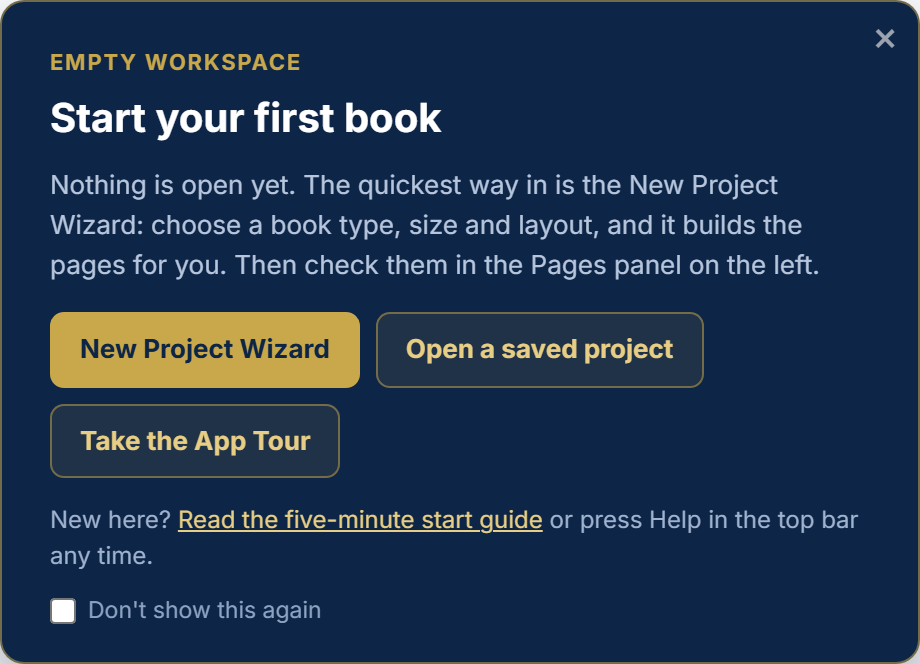
When Puzzle Pro opens with nothing in it, the workspace shows a card that says Start your first book. It has three buttons: New Project Wizard, Open a saved project, and Take the App Tour. Close it with the x, or tick Don't show this again and close it, and it stays away.
The card you see on an empty workspace. It disappears by itself once a book is open.
Open the wizard. Press New Project Wizard on the card, or choose New → New Project Wizard in the top bar. The wizard is a short list of steps, and the top left corner always says which step you are on, for example "Step 4 of 5".
Pick a type, size and layout. For a first book choose Word Search, the 6 x 9 in trim size and Single Page: Grid + Word Bank. Set the number of puzzles to 20 or more so the book reaches KDP's 24 page minimum. The wizard guide explains every screen.
Check the pages it built. Click thumbnails in the Pages panel on the left. Look at the title page, a puzzle and a solution page.
Save. Choose Save in the top bar and name the project. Autosave starts after that first save.
Find the export. At the bottom of the right-hand panel, Puzzle Finalization has four numbered steps. Step 4 builds the print files. The Puzzle Finalization guide shows each one.
Done when: you have a book with real puzzles in it, saved under a name you recognize.
Get started
Find your way around the workspace
Puzzle Pro has five areas. Once you know what lives where, every other guide is easy to follow.
1. The top bar
Everything about files and viewing is up here. Buttons with a small arrow open a menu.
Left to right: the logo and App Tour, your files, your view, and your account tools.
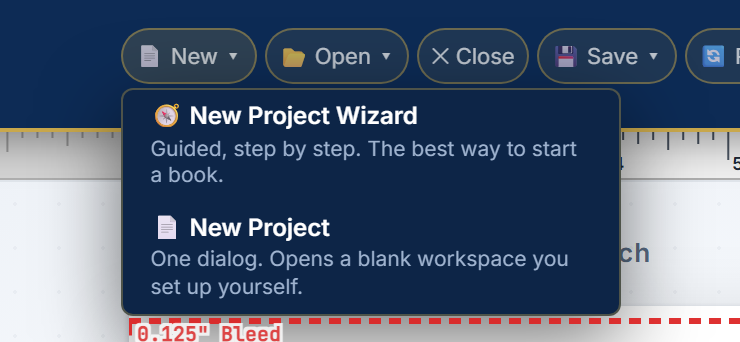
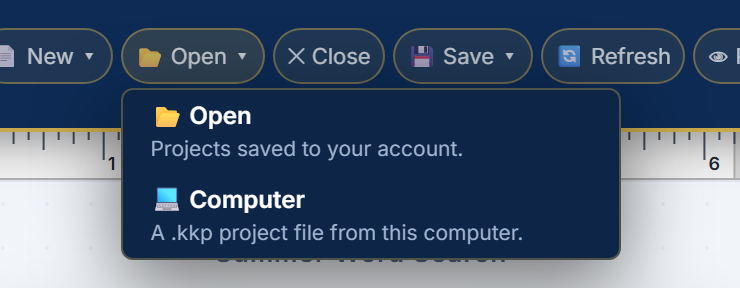
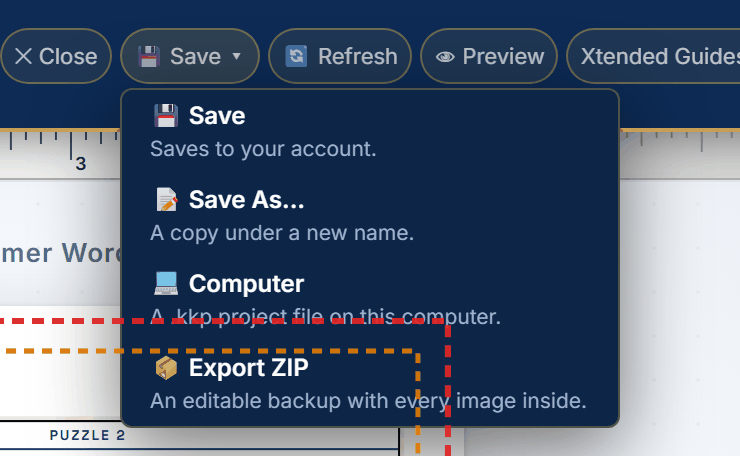
The file menus say what each choice does. New lists the guided wizard first. Open and Save both have a Computer choice: under Open it reads a project file from your computer, under Save it writes one.
New: start with the wizard.Open: your account or your computer.Save: one Save, plus copies and backups.
The view group changes how you look at a page, never what is in the book.
Refresh reloads the app and asks first if anything is unsaved. Preview shows the page at print size with the guides hidden. Xtended Guides stretches the guide lines across the canvas. Guides shows bleed, safe zone, spine and barcode areas. Ruler shows inch rulers.Templates downloads starter files. Upgrade is Plans & Billing. Settings holds your account. Help opens the five-move start, these guides and the print specs.
2. The Pages panel, on the left
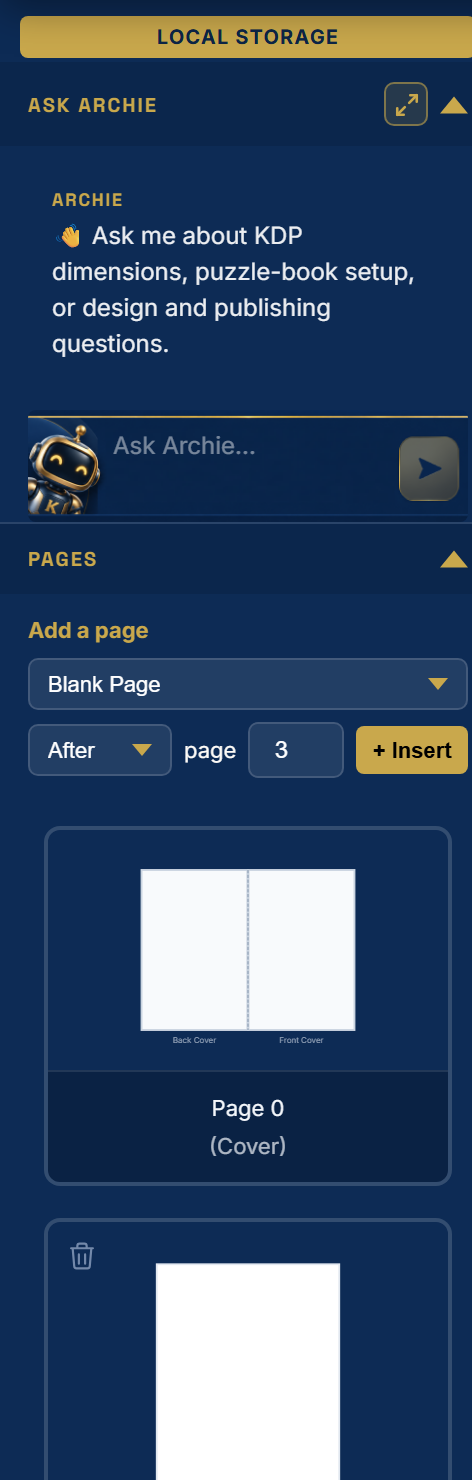
Every page of the book, in order. Click a thumbnail to jump to it. Page 0 is the cover spread, then the title page, then the puzzles, then the solutions. Drag a thumbnail to reorder, or use the small trash icon on a thumbnail to remove that page. Under Add a page, choose a page type, Before or After, a page number, and press + Insert.
The Pages panel.Ask Archie sits above Pages. It is a text chat for questions about the app and about puzzle books. It answers in words; it does not make puzzles or pictures.
3. The canvas, in the middle
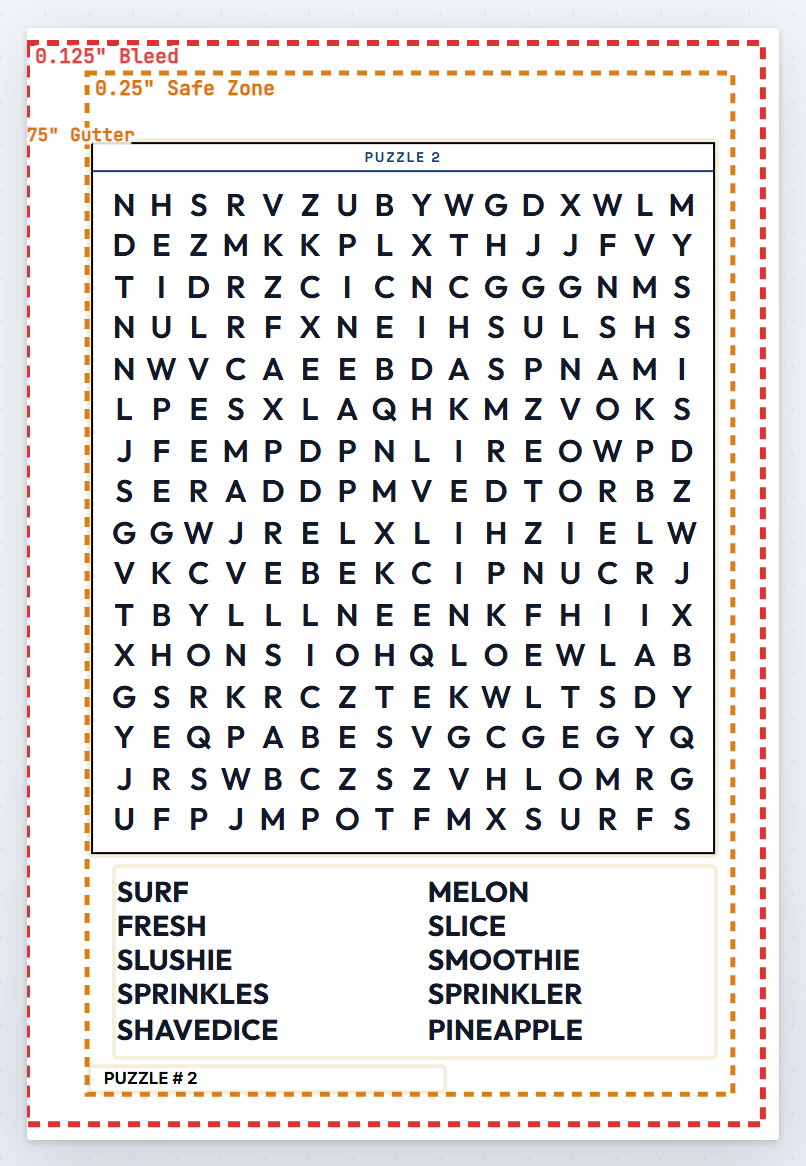
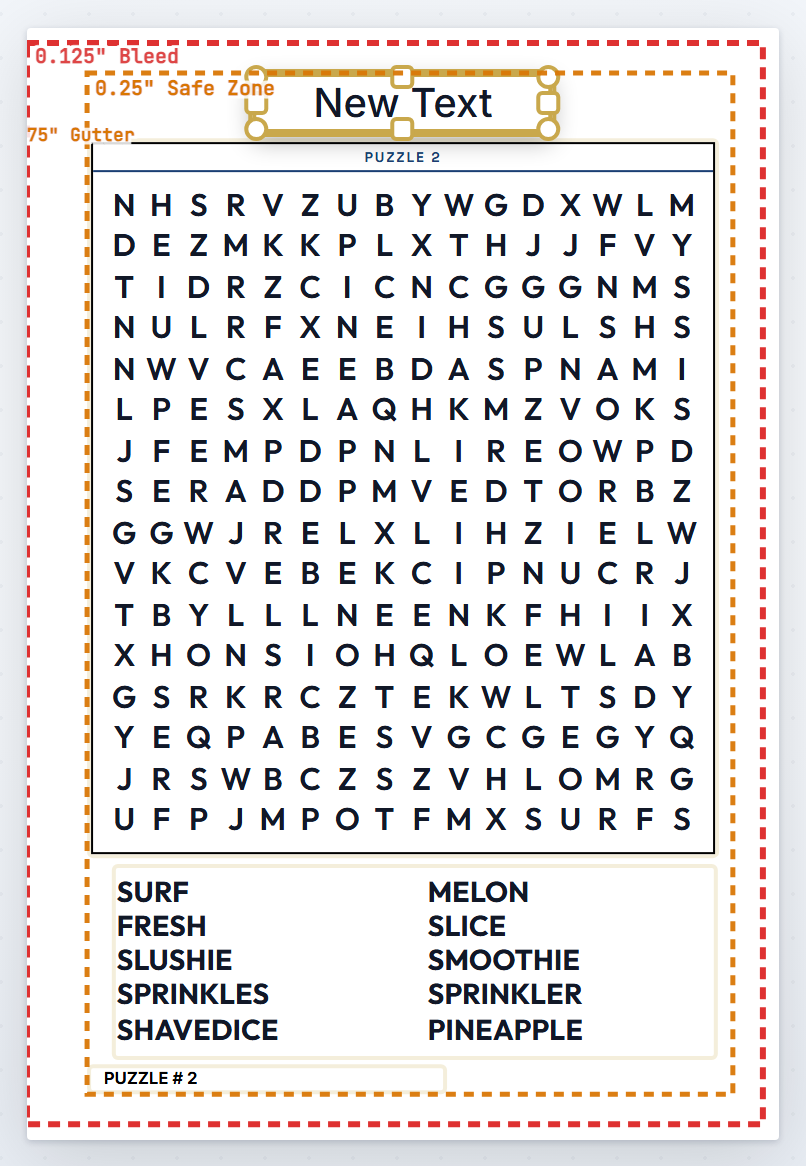
This is the page you are editing, at the size it prints. Click anything to select it, drag to move it, and use the corner handles to resize. Double click a text box to type in it. Dashed lines are guides: red is the bleed edge, orange is the safe zone, and the cover also shows the spine and the barcode area.
A puzzle page with Guides on. Keep everything that matters inside the orange line.
4. The status bar, under the canvas
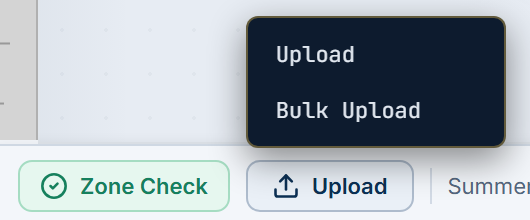
Zone Check tests the cover's print zones. Upload adds pictures. The slider zooms. Global Canvas Edit decides whether a change can spread to matching items on other pages.Upload places one picture. Bulk Upload places many at once.
5. The Inspector, on the right
Every setting that changes the book or the selected item lives here, in sections that open and close. From the top: Project Settings, Puzzle Formatting, Text Box & Banners, Clipart Library, Shape Library, Cover Composer, My Images & Templates, and Puzzle Finalization. The bars at the very top set stacking order and picture fit for the selected item.
Click a section's title to open or close it. The next guides open each one.
Done when: you can say where to find Save, the page list, Preview, and the export step without looking.
Get started
Use the New Project Wizard from start to finish
Choose a layout, configure the book, supply content, and generate an editable project. This walkthrough uses Word Search. Other book types have their own middle steps, listed at the end.
1. Open the wizard
Choose New → New Project Wizard in the top bar, or press the button on the empty workspace card. Save your current work first if you want to keep it. If a project is open, choose Close & Save to keep changes or Close Without Saving to discard them.
The wizard starts from the New menu.
2. Set up the project and choose a layout
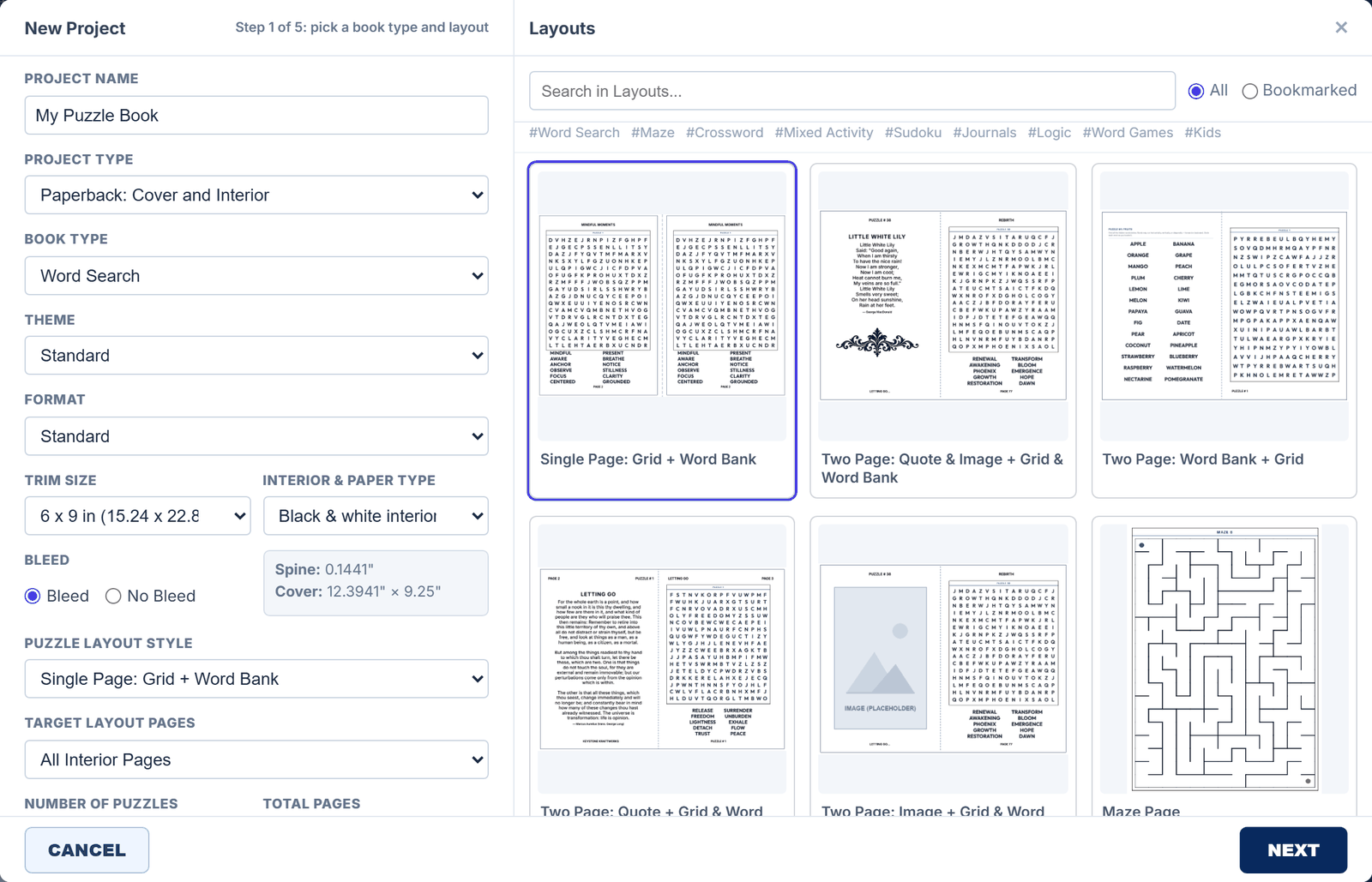
Enter a recognizable Project Name. Select the Book Type, trim size, interior and paper type, and bleed. The Layouts gallery on the right shows how each design arranges its pages; select the card that fits your book. The left corner of the title bar reads Step 1 of 5 (the count changes with the book type). For a first book use Single Page: Grid + Word Bank. Click Next.
Step 1 holds the setup on the left and the layout gallery on the right.
KDP prints paperbacks of at least 24 pages. If your page total is lower, the Project Summary on the left says so in orange. Raise the number of puzzles until the total reaches 24.
3. Choose the answer-key arrangement
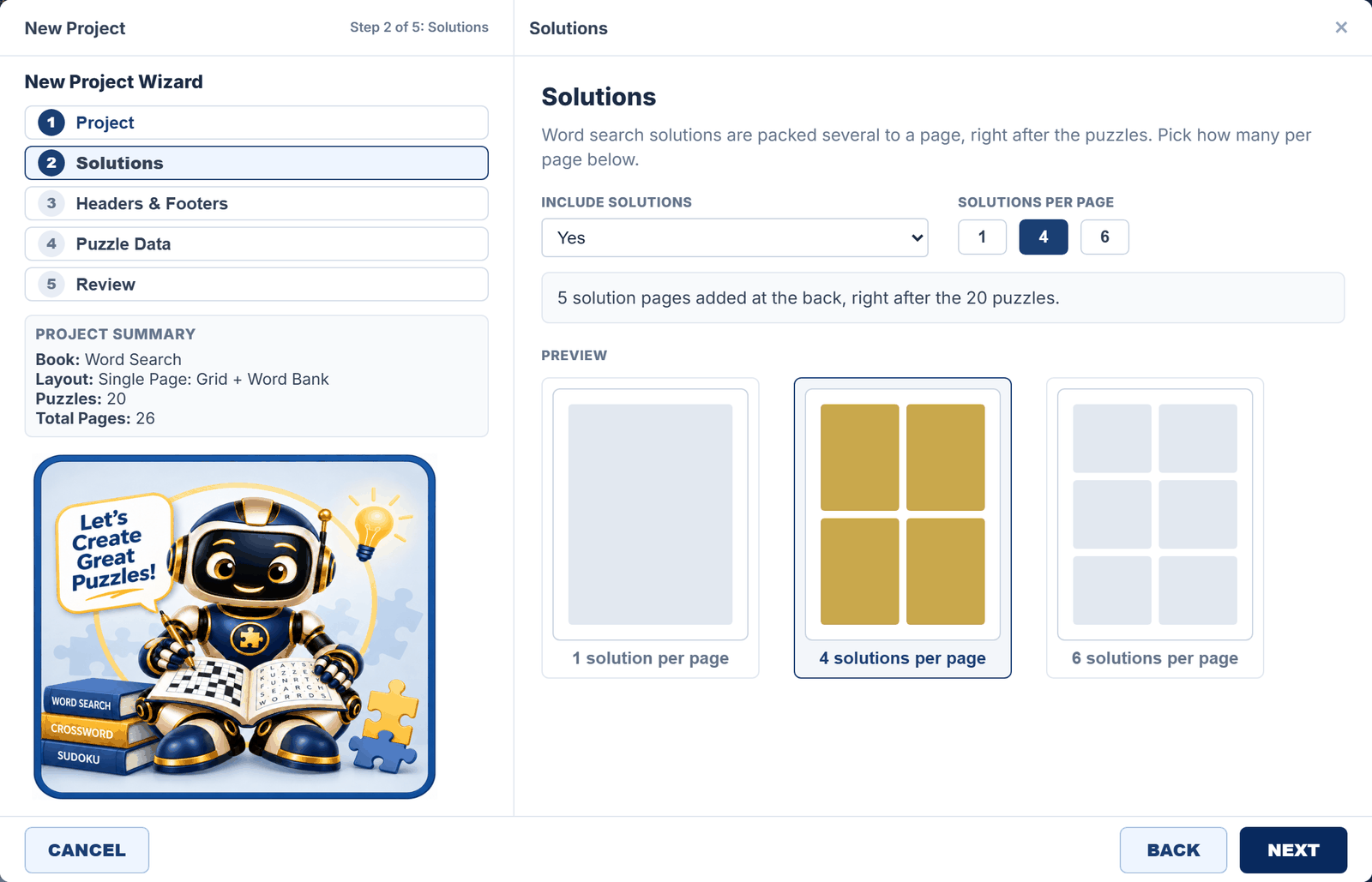
On Solutions, choose whether to include solutions. For Word Search, choose 1, 4, or 6 solutions per page and compare the previews. More solutions per page use fewer pages but make each answer smaller.
Solutions: choose how many answers fit on a page.
4. Configure headers and footers
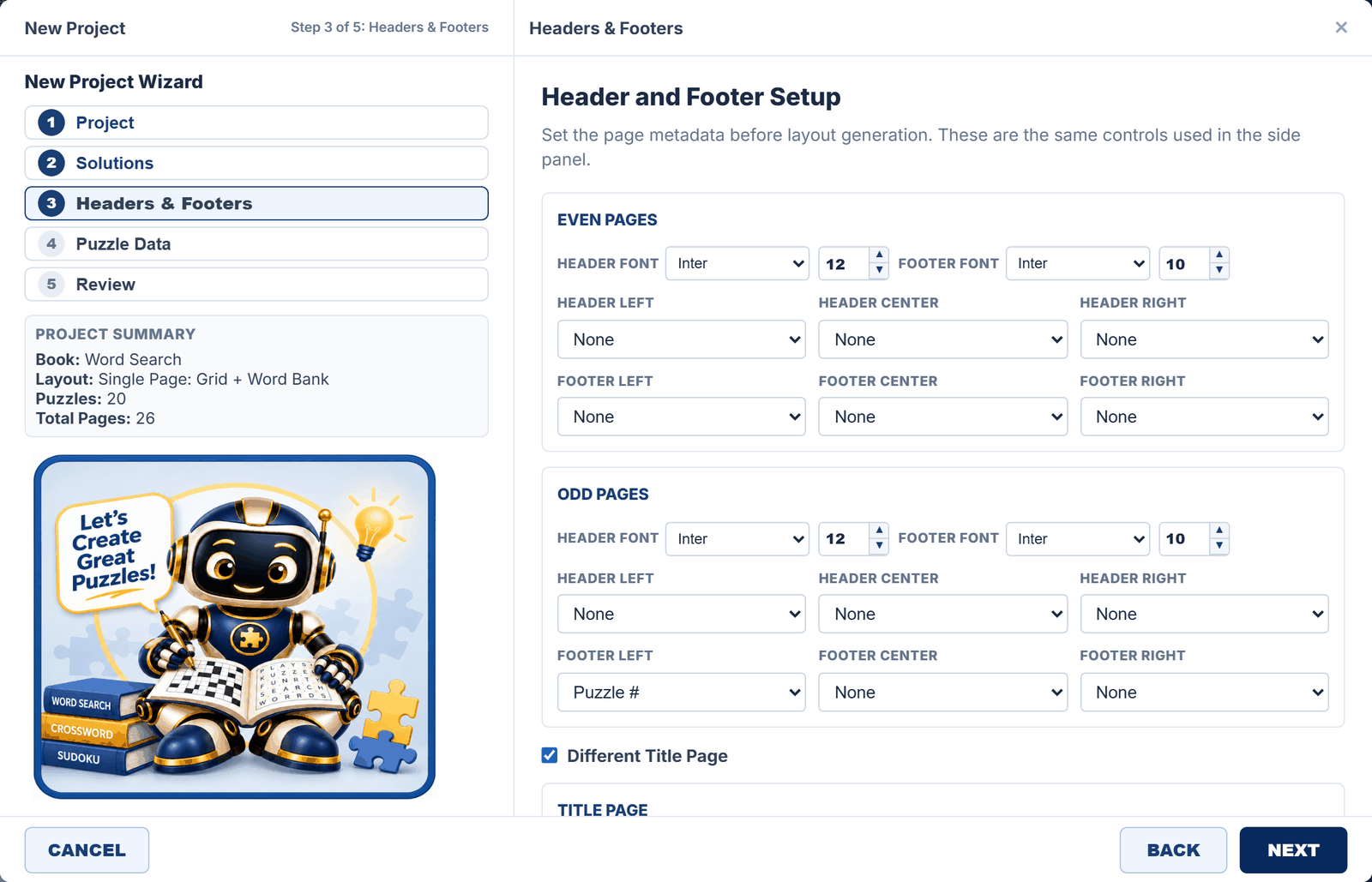
Set font and size, then choose what appears in the left, center, and right positions: None, Page #, Puzzle #, Theme, Book Title, or Custom. Even Pages and Odd Pages are set separately. Different Title Page gives the title page its own arrangement. Scroll down to see the title page controls.
Check both page groups and the title page.
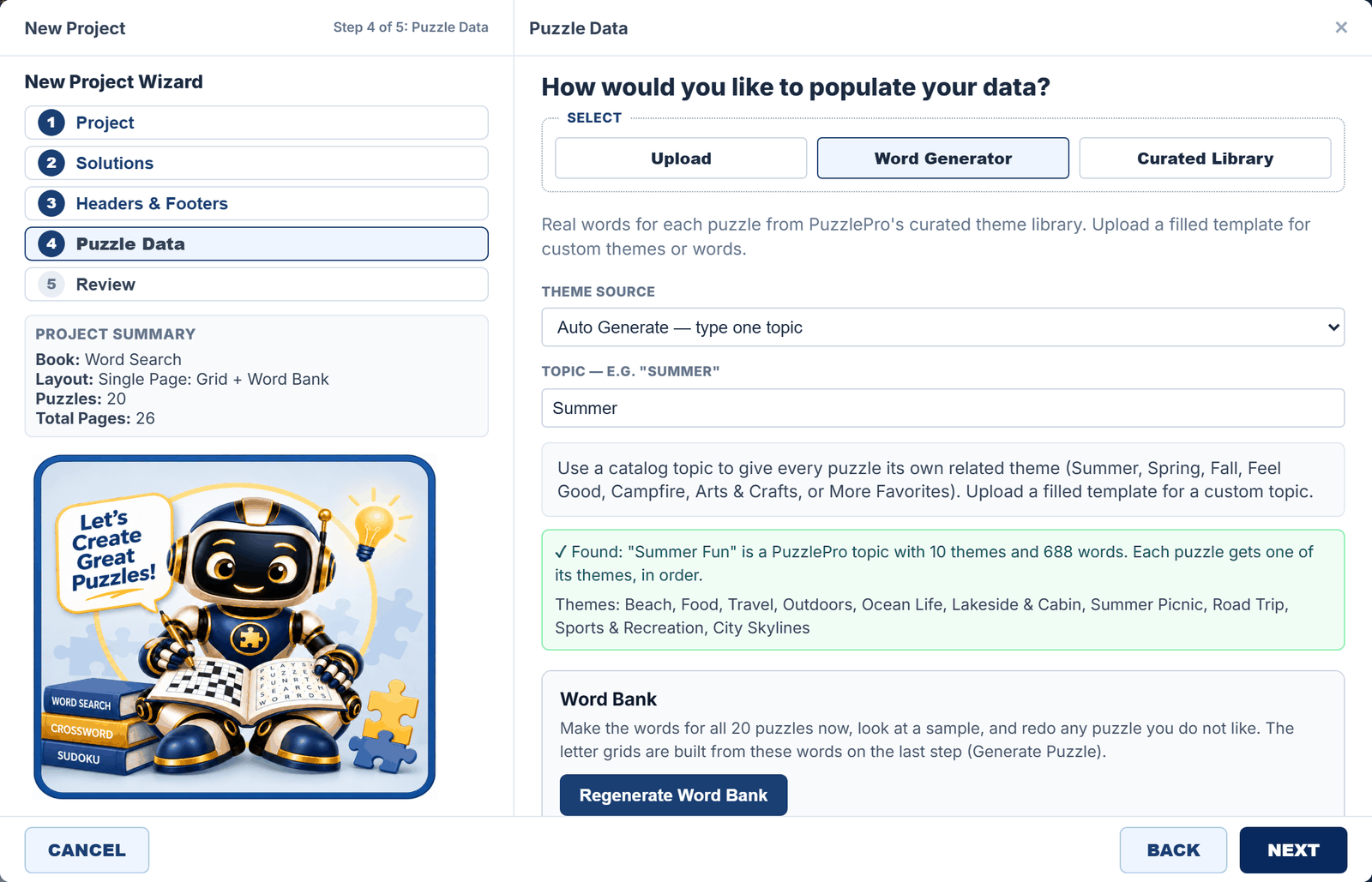
5. Supply the puzzle data
On Puzzle Data choose where the words come from:
Word Generator builds words from a theme. Pick Auto Generate and type one topic such as Summer, or type one theme per puzzle. The wizard tells you when it found the topic.
Upload takes your filled CSV or XLSX template. Use the matching template from the Templates guide.
Curated Library loads approved, prepared content.
The Word Generator with a catalog topic. Choose a difficulty, or a mix, below this view.
If you choose a mix of difficulties, the Easy, Medium and Hard counts must add up to the total. If Next will not move on, read the message near the bottom of the dialog; it names exactly what is missing.
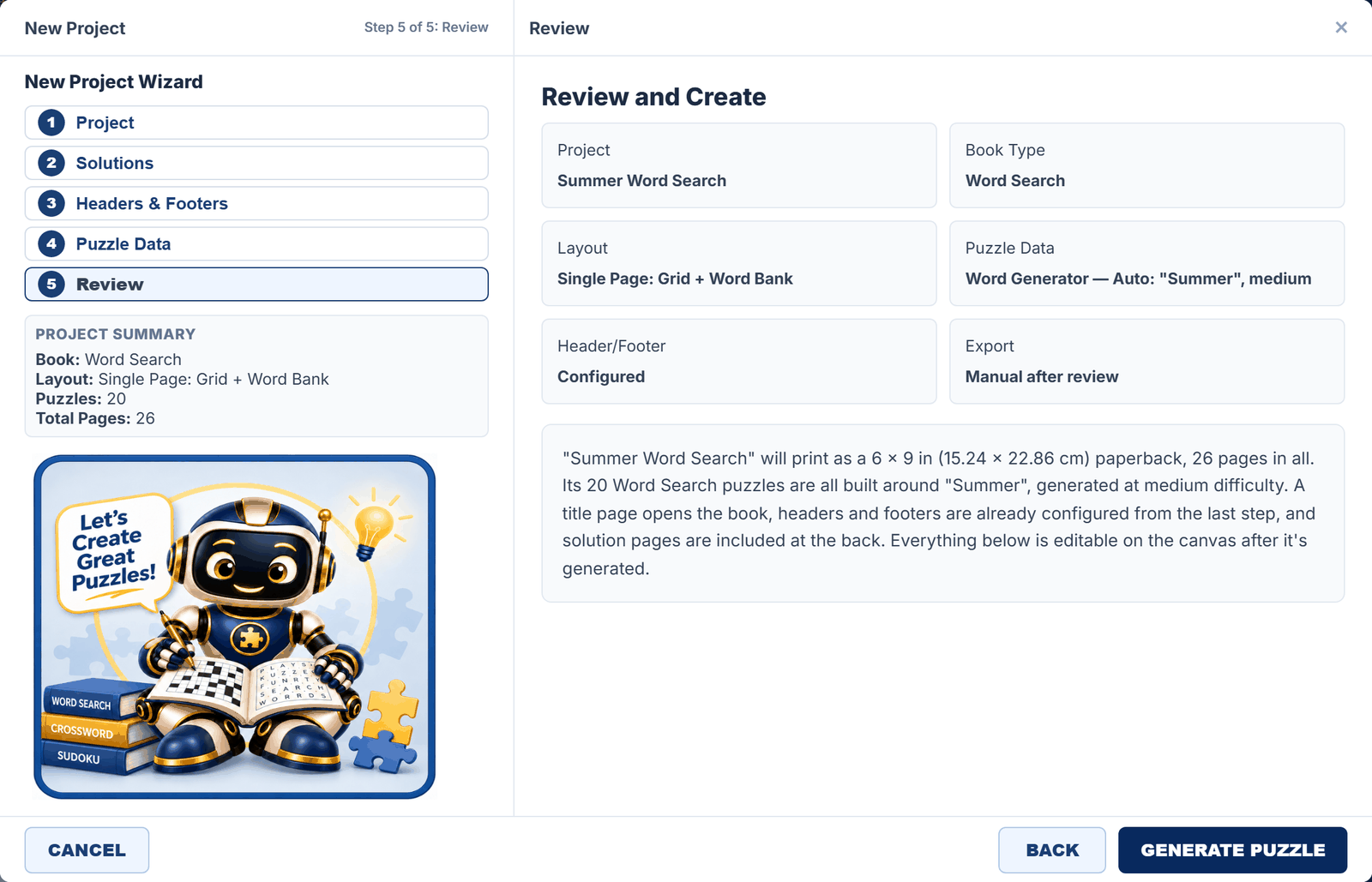
6. Review before generating
Read every summary card and the description. Confirm the project name, book type, layout, content source, difficulty, trim size, puzzle count and total pages. Use Back to change a choice. When it matches your intent, click Generate Puzzle (or Create Project for types that need no generation).
Review is the last checkpoint before the book is built.
7. Let generation finish, then inspect and save
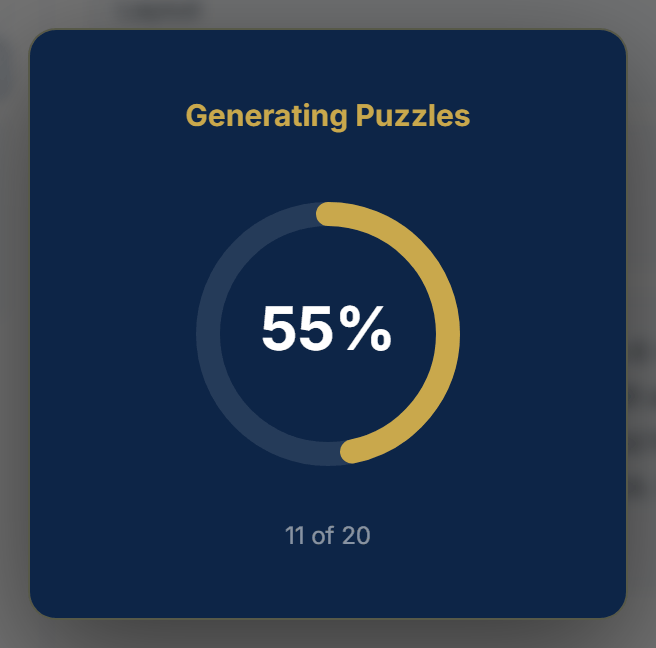
Keep the app open while the progress window runs. When the editor returns, inspect the title page, several puzzle pages and their solutions. Then choose Save → Save. Export is a separate step, covered in the export guide.
Wait for the progress window to close.
How the steps change for other books
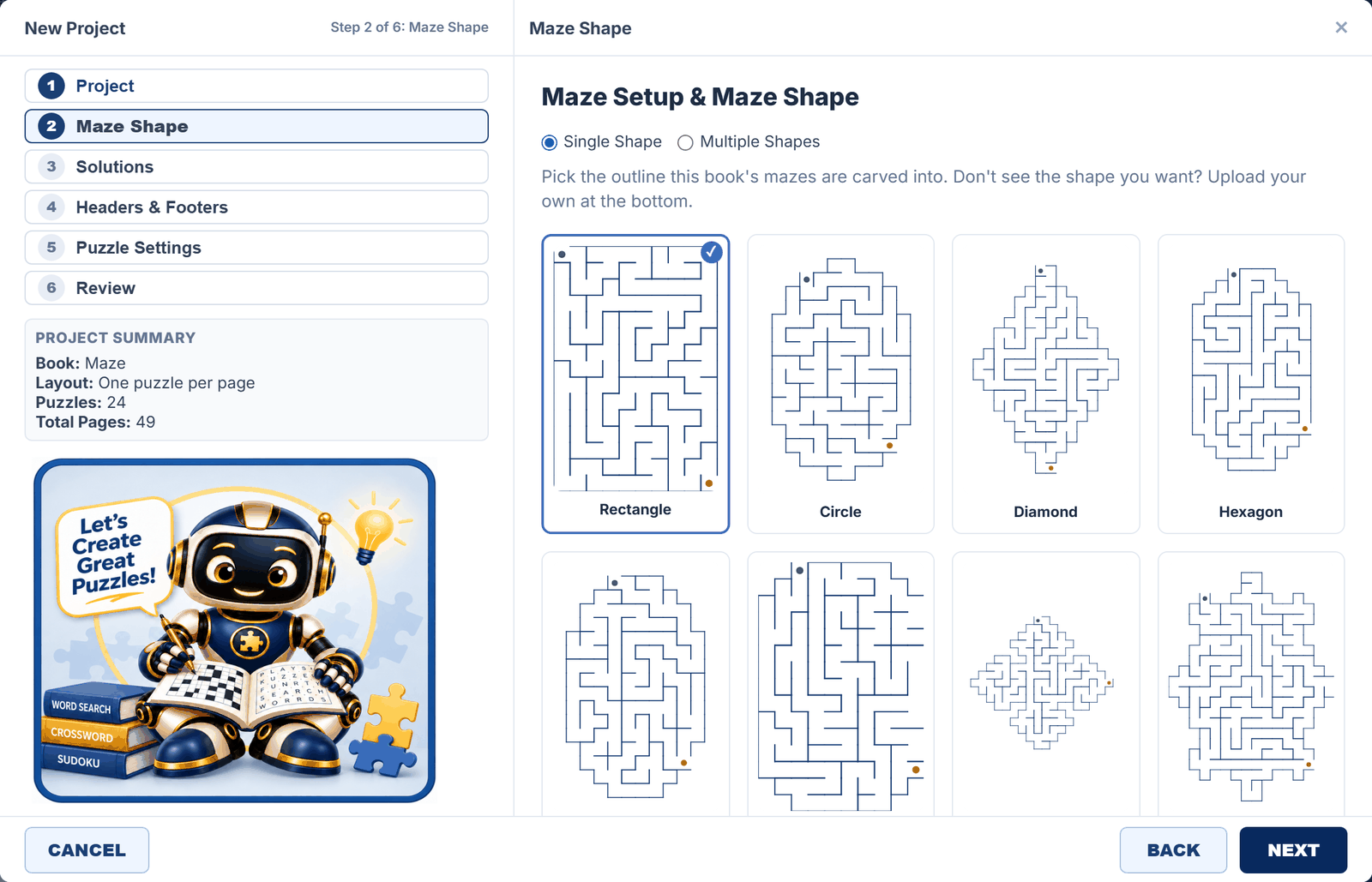
Mazes: Project, Maze Shape, Solutions, Headers & Footers, Puzzle Settings, Review. No word list is needed.
Pick an outline in Maze Shape, then set difficulty and drawing style in Puzzle Settings.
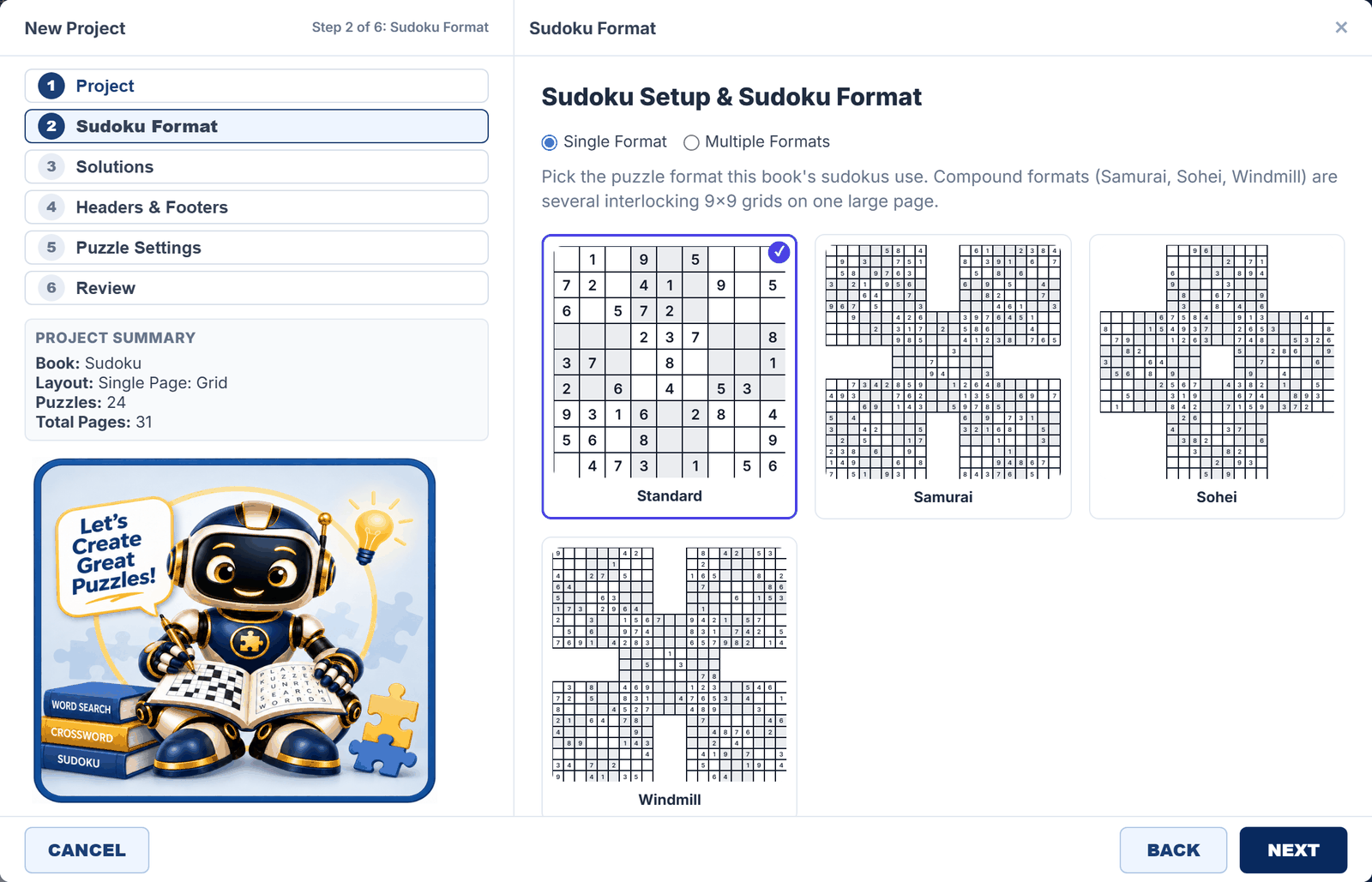
Sudoku: Project, Sudoku Format, Solutions, Headers & Footers, Puzzle Settings, Review. Standard 9 x 9 is the simple choice; Samurai, Sohei and Windmill combine several grids.
Choose the grid format first.
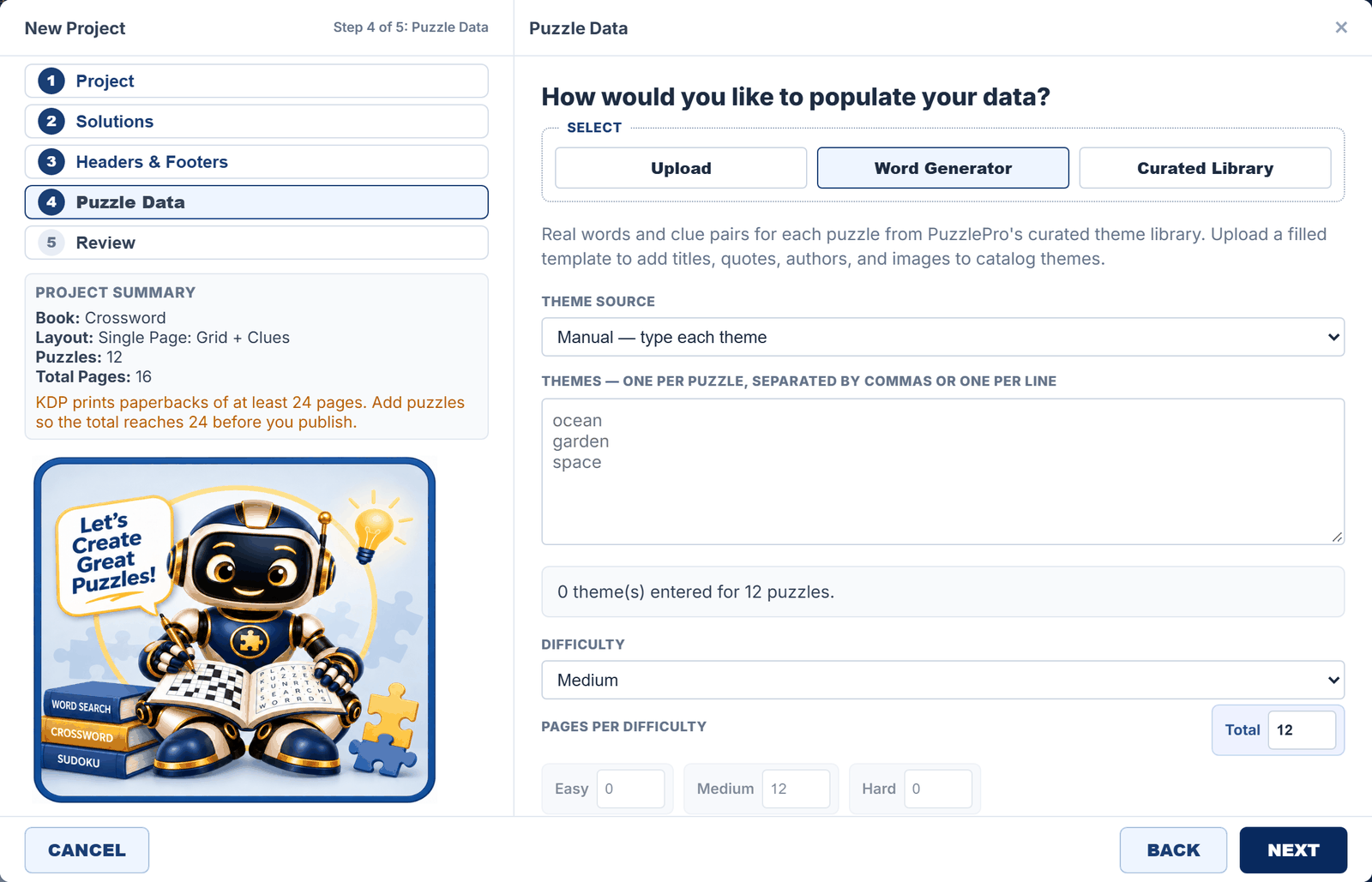
Crosswords: Project, Solutions, Headers & Footers, Puzzle Data, Review. Generate from a topic, upload your own answers and clues, or load the curated library.
Crossword data uses the same three sources as Word Search.
Mixed Activity and Smart Book Builder: a Choose Games step lists the puzzle types to include, each with its own settings step, then Headers & Footers and Review.
Everything else: follow the named setup step in the step list. Cryptograms use Cryptogram Text, Kids Sudoku has its own setup, journals use Journal Setup. Resolve any message before pressing Next.
Done when: generation has finished, the pages and answer keys match your choices, and the project is saved.
Build your book
Edit pages and puzzle text
Move around the book, make puzzle text readable, and know which changes affect one page and which affect the whole book.
Select a page in Pages. Click its thumbnail. Page 0 is the cover. Solution pages sit at the end, under the Solutions label.
Adjust your view. Use the slider or the + and - buttons under the canvas to zoom. Turn on Ruler and Guides to line things up. Preview hides the guides so you see the page as the printer will.
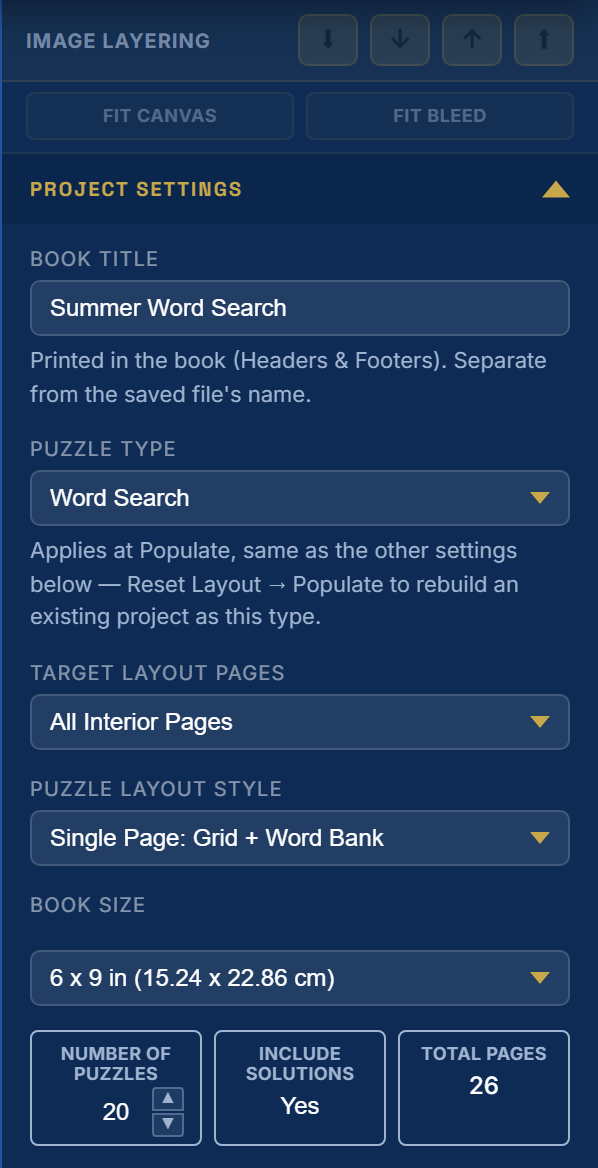
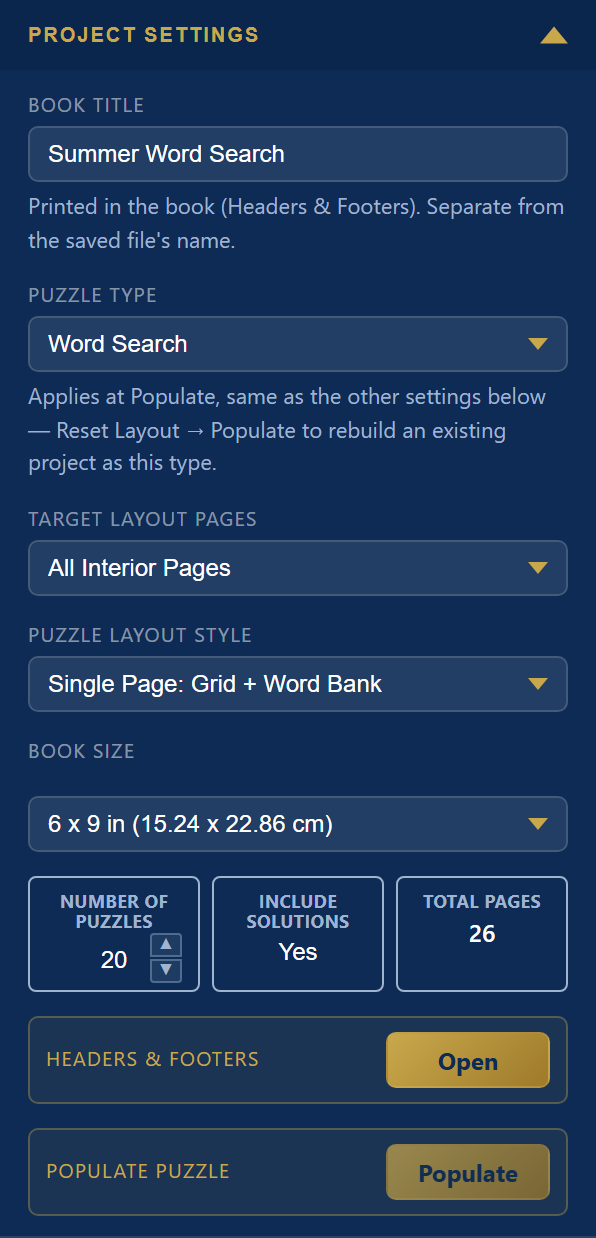
Review Project Settings. The first Inspector section holds the book's title (printed in headers and footers), puzzle type, layout style, size, number of puzzles, whether solutions are included, and the total page count.
Project Settings. The book title and the saved file's name are separate things.
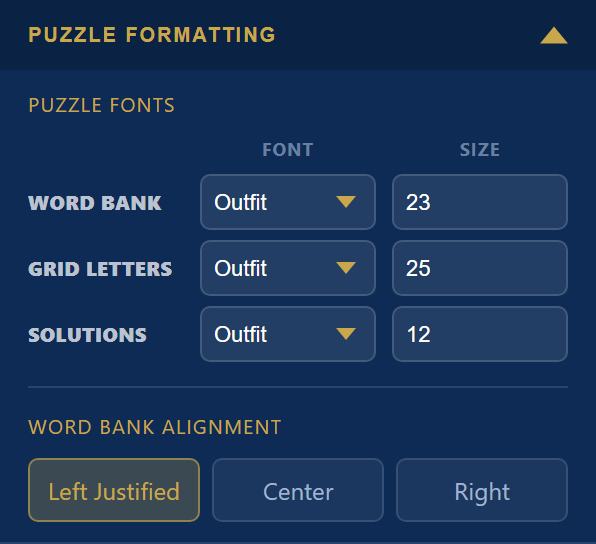
Open Puzzle Formatting. For Word Search it sets the font and size of the Word Bank, the Grid Letters and the Solutions separately, and the Word Bank alignment. Change one value, then check a puzzle page and a solution page.
Separate type controls let the grid and the answer key each be readable.
Select an item on the canvas. Drag it to move it. Use a corner handle to resize. The Inspector shows settings for the selected item. Right click a Word Search grid or word bank and choose Format Font for finer control.
A selected item shows handles. A new text box appears in the empty space nearest the middle of the page, here the strip above the grid, so it does not land on a puzzle. Drag it wherever you need it. On the cover page a new box starts at a fixed spot.
Check Global Canvas Edit. With the switch on, moving, resizing or reformatting an item asks whether to apply the same change to matching items across the whole book. With it off, a change stays on the current page. Check it before an edit meant for one page.
Undo what you did not mean. Press Ctrl+Z (Cmd+Z on a Mac), or use the arrows under the page. Ctrl+Shift+Z or Ctrl+Y redoes.
Compare the page and its answer
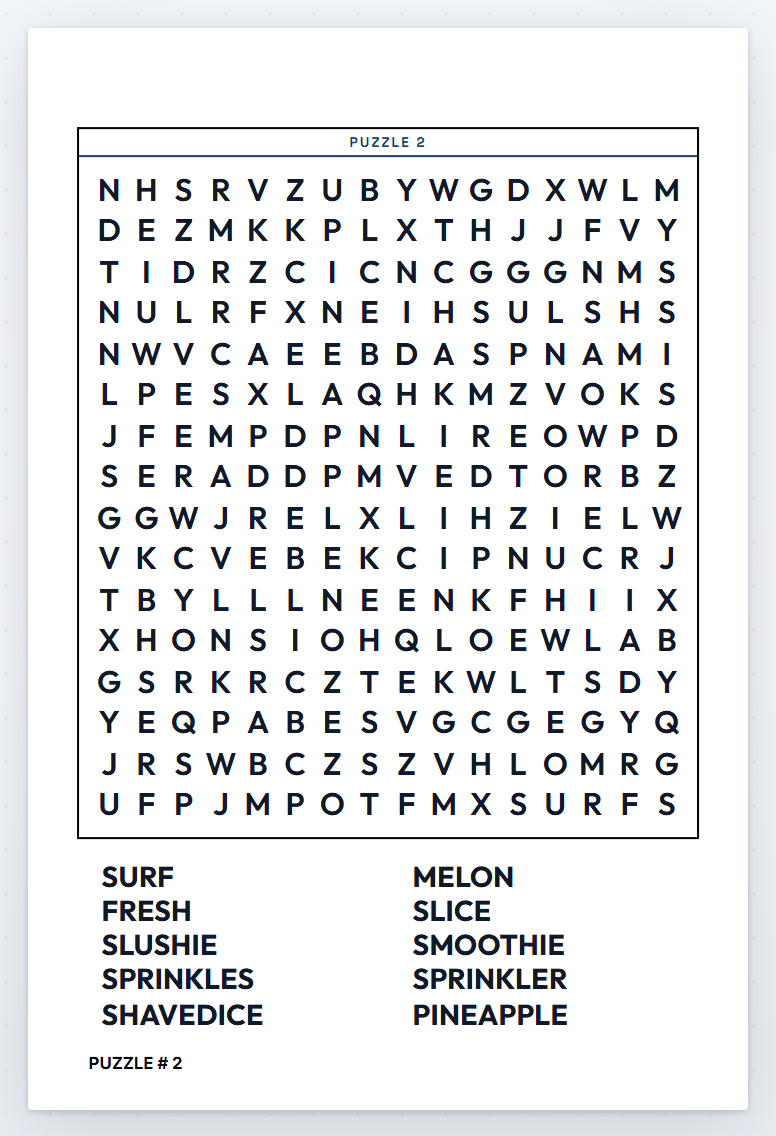
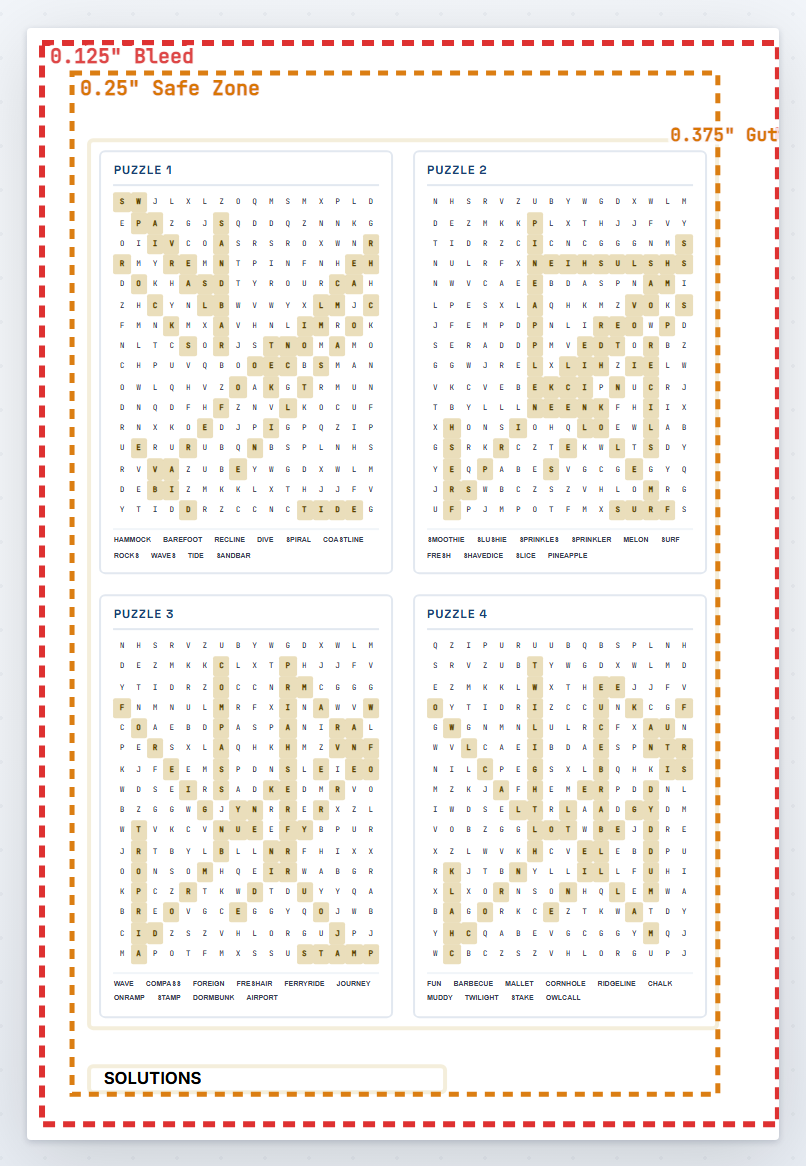
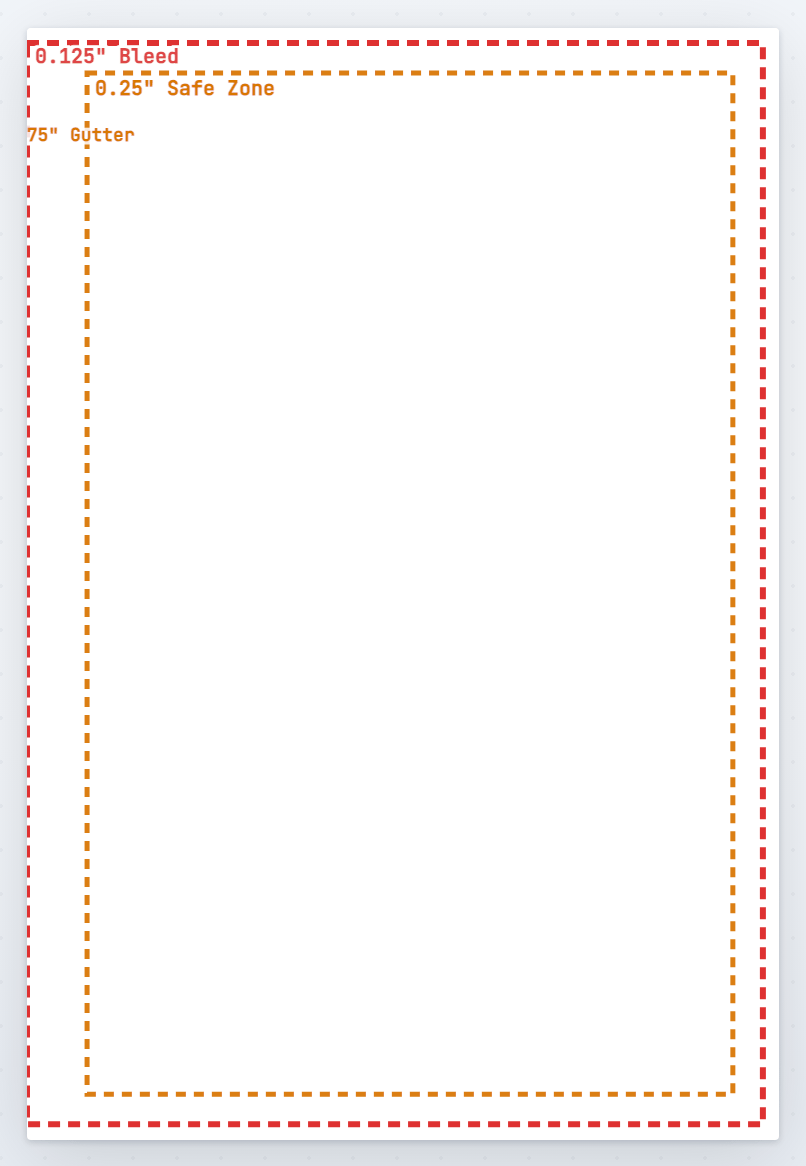
A puzzle page in Preview.A solutions page, four answers to a page.The title page (page 1) starts empty. Add a title with a text box.
Done when: text fits its boxes, no word bank entry is clipped, and the solution pages are legible.
Build your book
Add text, clipart and shapes
Add a heading, a decorative picture or a frame to any page, and style it.
Text boxes and banners
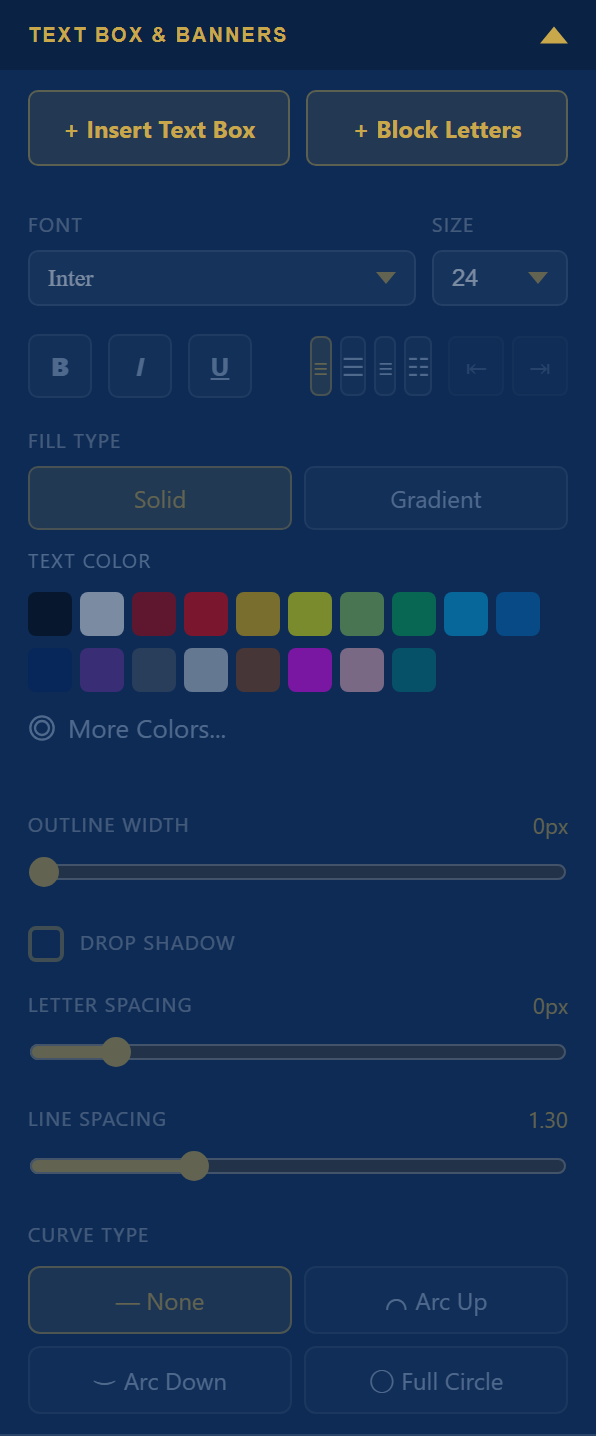
Go to the page, then open Text Box & Banners in the Inspector.
Press + Insert Text Box. A box appears on the page. + Block Letters adds large display letters instead.
Double click the box and type. Select words to bold them, or choose alignment and indent buttons for a line.
Use the panel to change font, size, bold, italic, underline, fill (solid or gradient), text color, outline width, drop shadow, letter spacing and line spacing. Curve Type bends text into an arc up, an arc down or a full circle.
Everything for the selected text lives in this panel.
Clipart
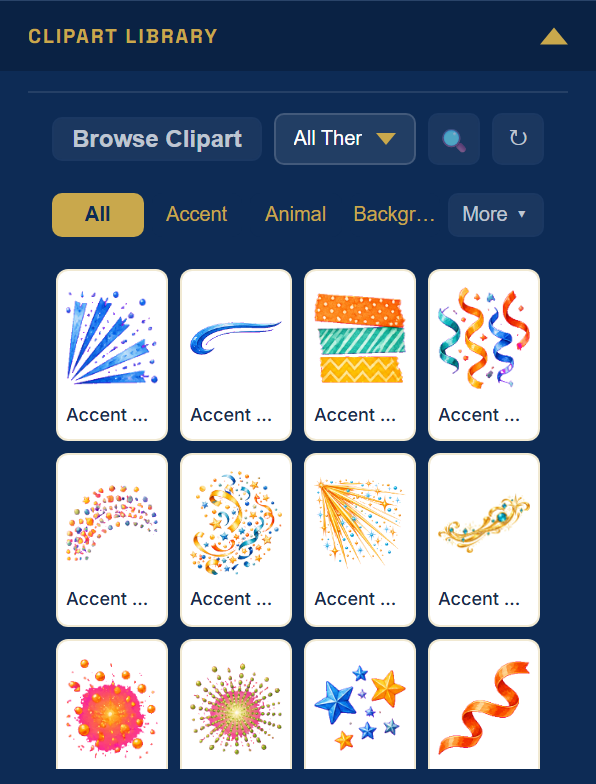
Open Clipart Library. Press Browse Clipart for a larger view, filter by theme, or use the search and category tabs.
Click a piece to place it on the current page. Many can be recolored after placing.
Full resolution files need you to be signed in, and how many you can use depends on your plan.
Browse, filter by theme, or search. Click a thumbnail to place it on the page.
Shapes
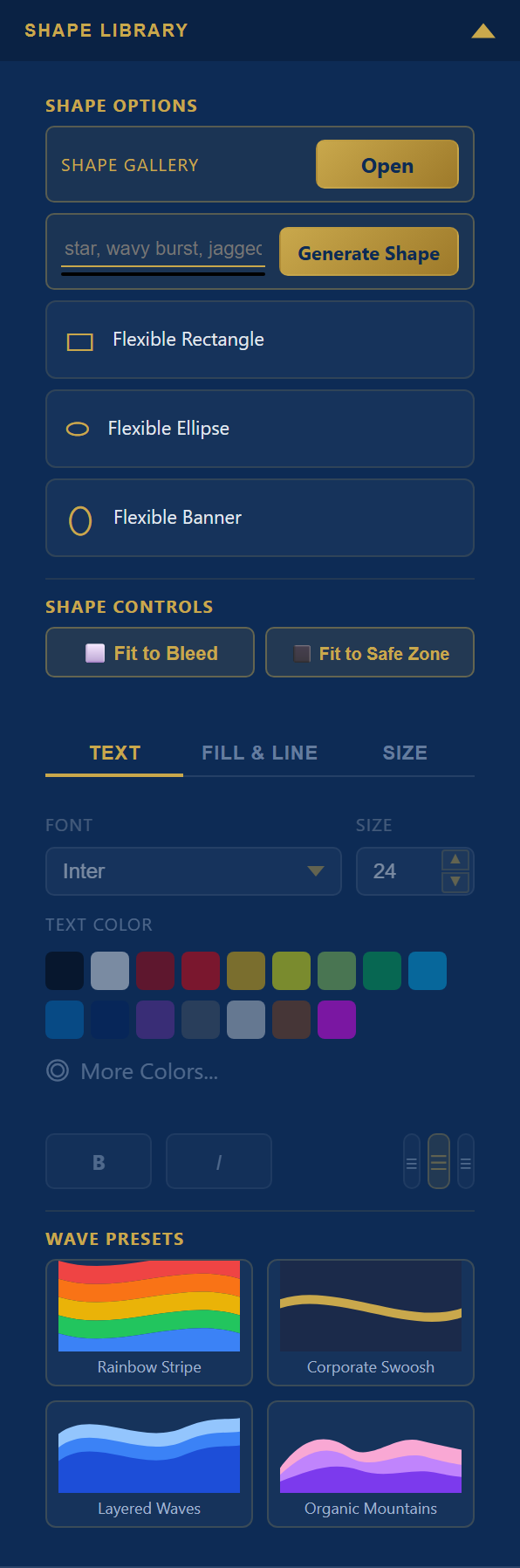
Open Shape Library. Use Shape Gallery for ready-made shapes, or type a few words such as "star, wavy burst" and press Generate Shape.
Flexible Rectangle, Ellipse and Banner can be resized freely. Fit to Bleed and Fit to Safe Zone size a shape to those guides in one click.
After placing a shape, the Text, Fill & Line and Size tabs restyle it. Wave Presets add ready-made decorative waves.
Shapes can frame a puzzle, divide a page or decorate a cover.
Done when: each added item sits inside the safe zone and does not cover a grid or word bank.
Build your book
Add images and place them
Upload your own pictures, keep the ones you reuse, and fit them to the page.
Go to the right page. Page 0 is the whole cover spread. Page 1 is the title page.
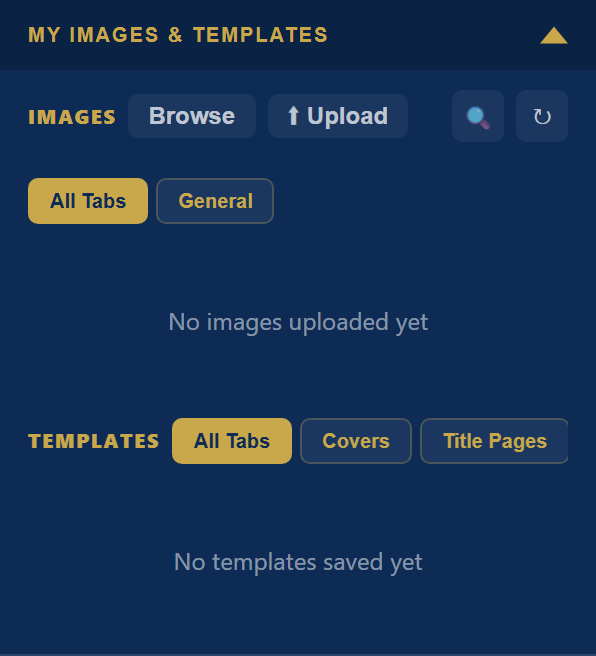
Add a picture. Use Upload in the status bar for one picture, or Bulk Upload for many. Low resolution files get a print quality (DPI) warning before they are placed. You can also open My Images & Templates and press Upload there.
Keep reusable pictures. My Images & Templates holds your library and your saved templates. A picture you place on the canvas stays inside the project; save it to My Images only when you want it in other books.
Images on top, saved templates below.
Position it. Drag and resize on the canvas. Fit Canvas and Fit Bleed at the top of the Inspector are quick starting points, but check the crop afterward.
Judge it at final size. Enlarging a small picture does not add detail. Use a detailed original.
Done when: every picture is sharp at its printed size and nothing important touches the page edge.
Build your book
Design a cover
Pick a designed cover, fill in your title and author, and check the print zones.
Go to Page 0. The Cover Composer only works on the cover page. From any other page its panel has a Go to the cover page button.
Open the composer. In the Inspector, open Cover Composer and press Open Cover Composer.
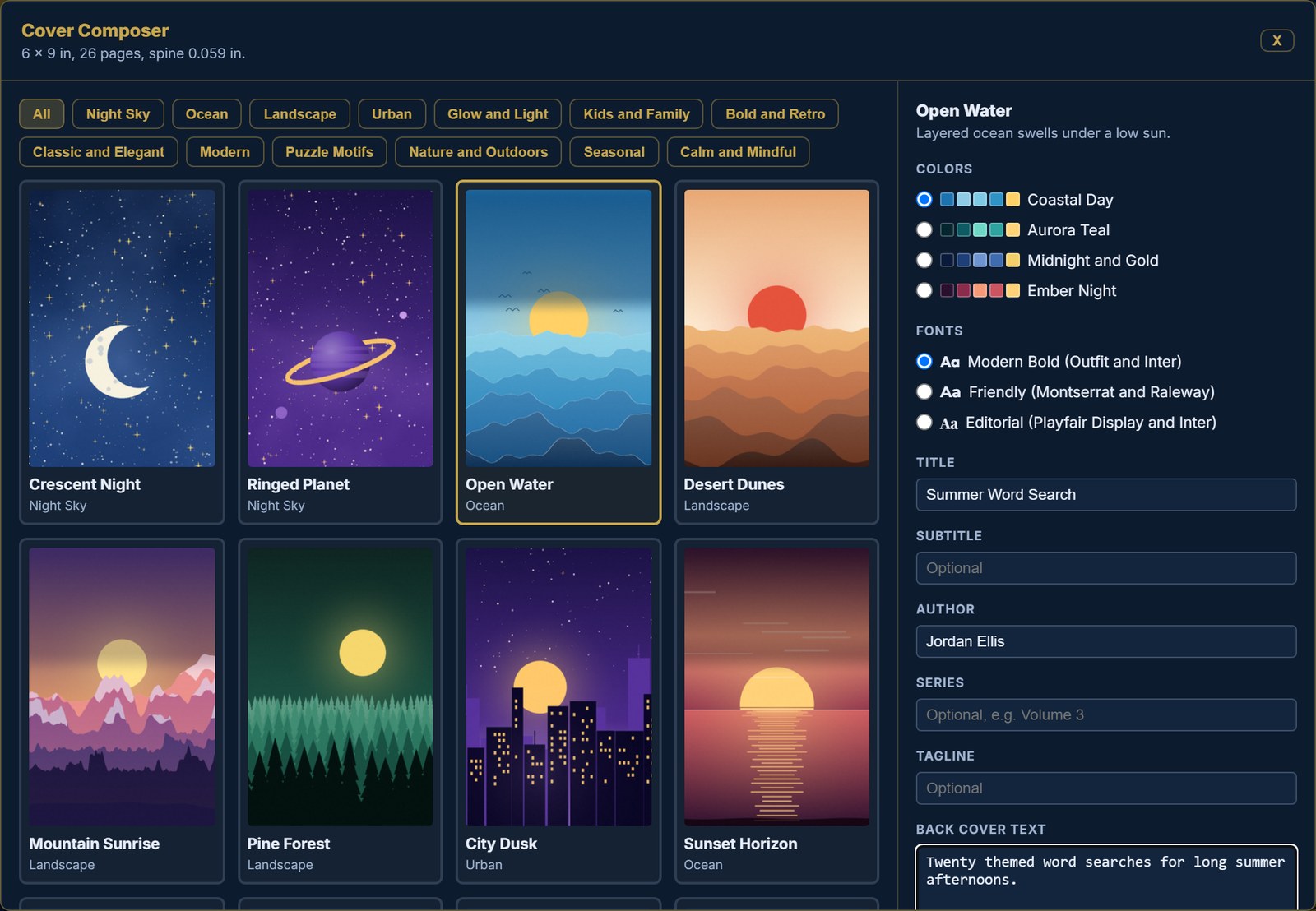
Choose a design. Filter by category at the top, then click a card. On the right choose a color set and a font set.
Fill in the text. Title, subtitle, author, series, tagline and back cover text. The title starts as your Book Title. Spine text appears only on books of 100 pages or more.
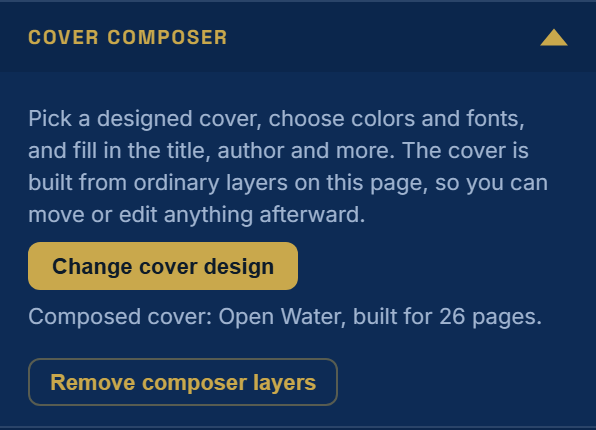
Press Apply to cover. The cover is built from ordinary layers, so you can move or edit anything afterward. Applying again replaces the earlier composed cover.
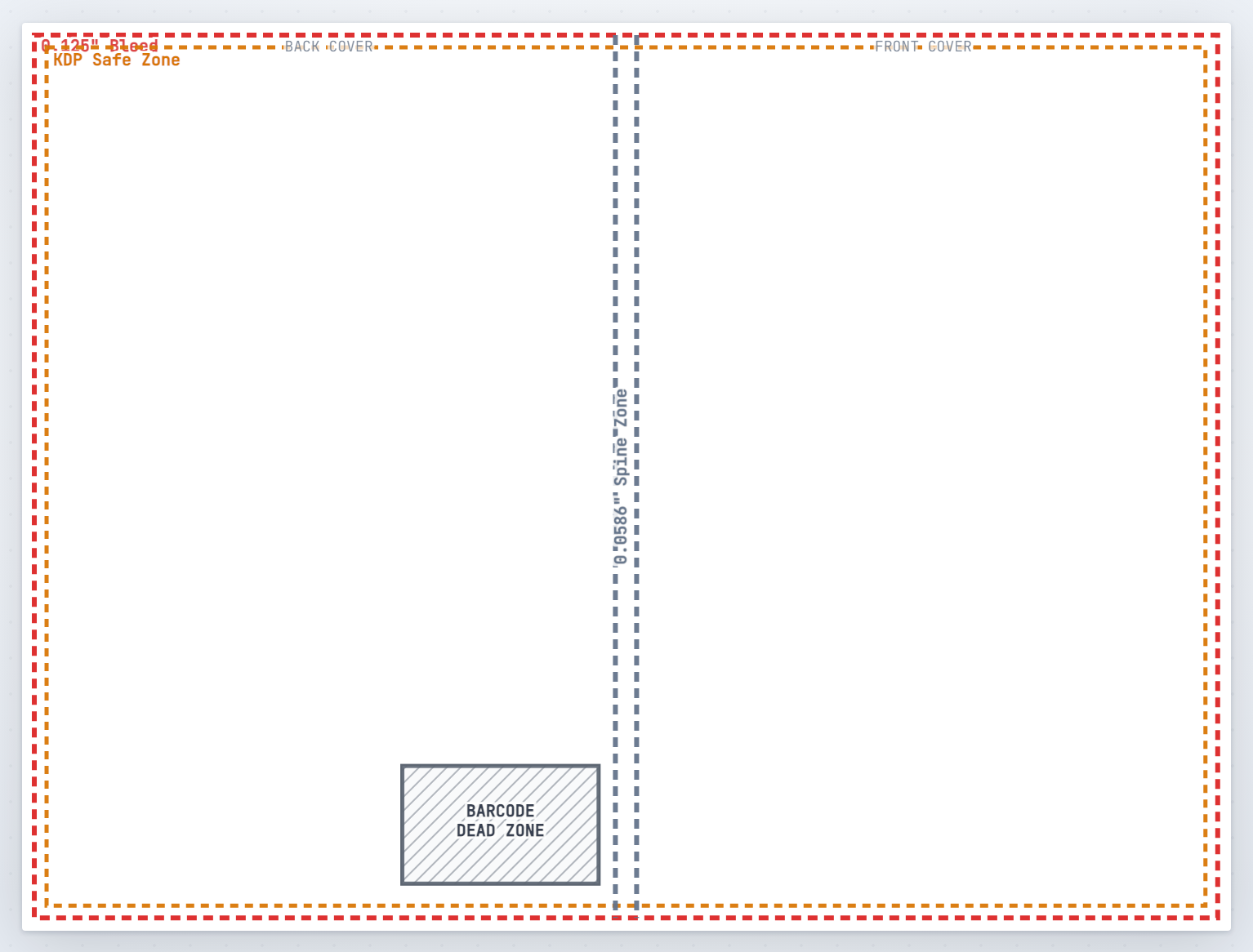
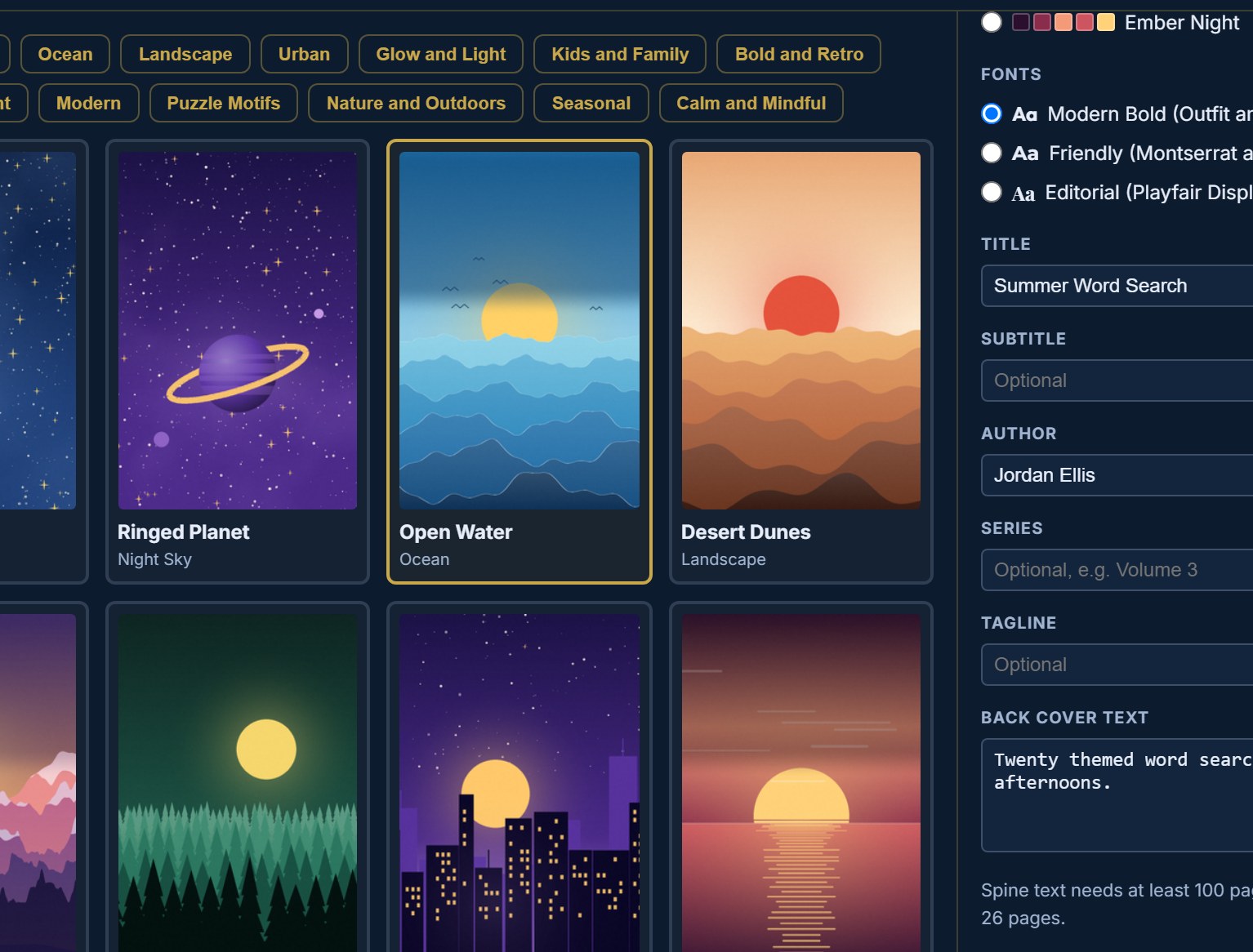
The cover page before a design is applied. The hatched box on the back is the barcode area.The Cover Composer. Cards on the left, choices and text on the right.The result on the cover page, with print guides on. The hatched box is the barcode area; keep it clear.
Check the print zones
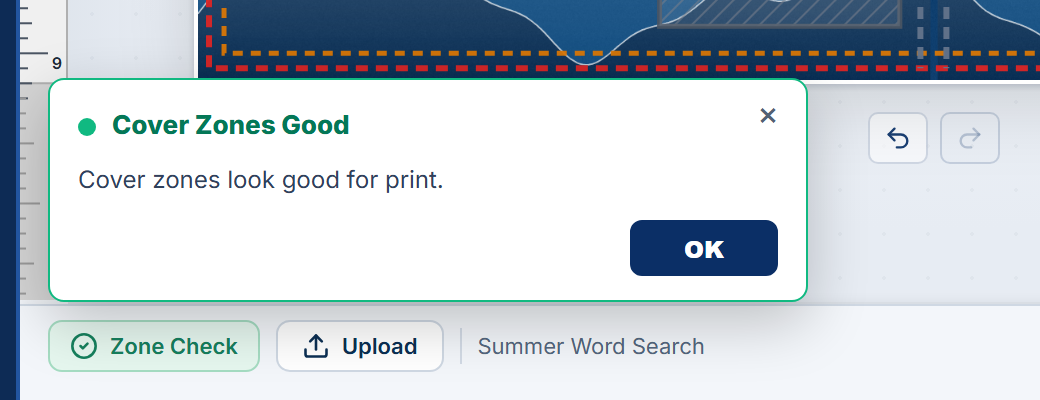
Press Zone Check in the status bar. It reports Cover Zones Good, or lists what crosses a zone. Fix anything it names, then check again.
A clean Zone Check.
After applying: Change cover design reopens the composer. Remove composer layers clears it.
Done when: Zone Check is clean, the title is readable at a glance, and the barcode area is empty.
Finish and publish
Puzzle Finalization, step by step
The bottom section of the Inspector turns your settings into pages, fills them with puzzles, and builds the print files. It has four steps, in order.
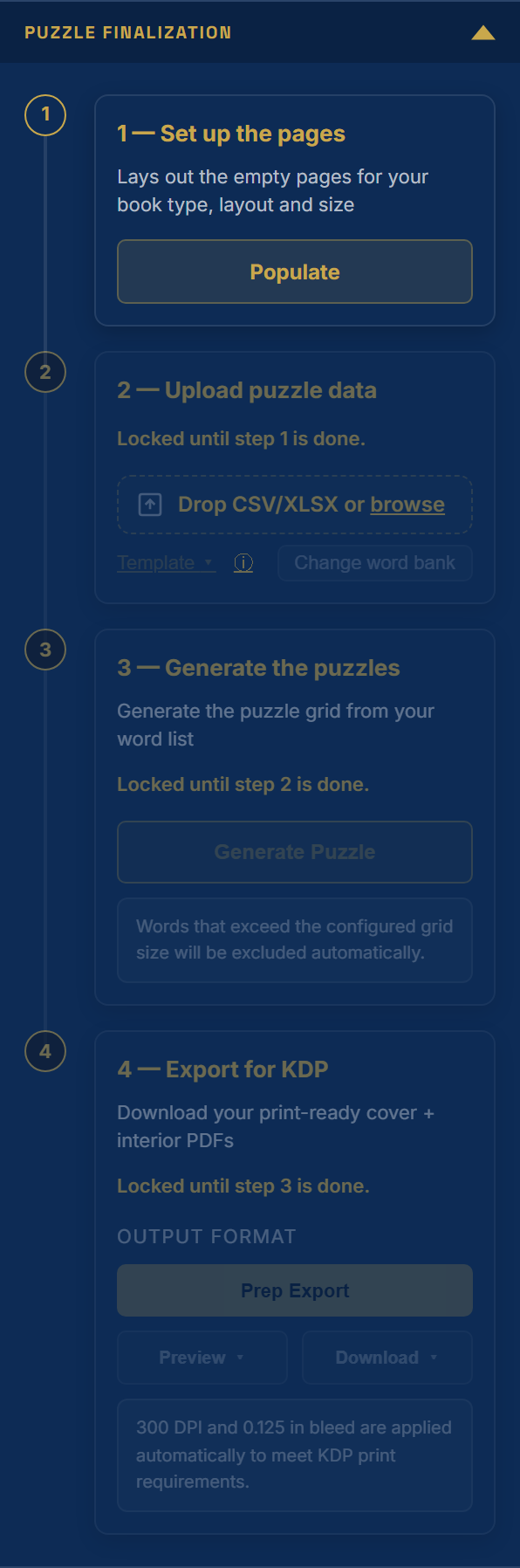
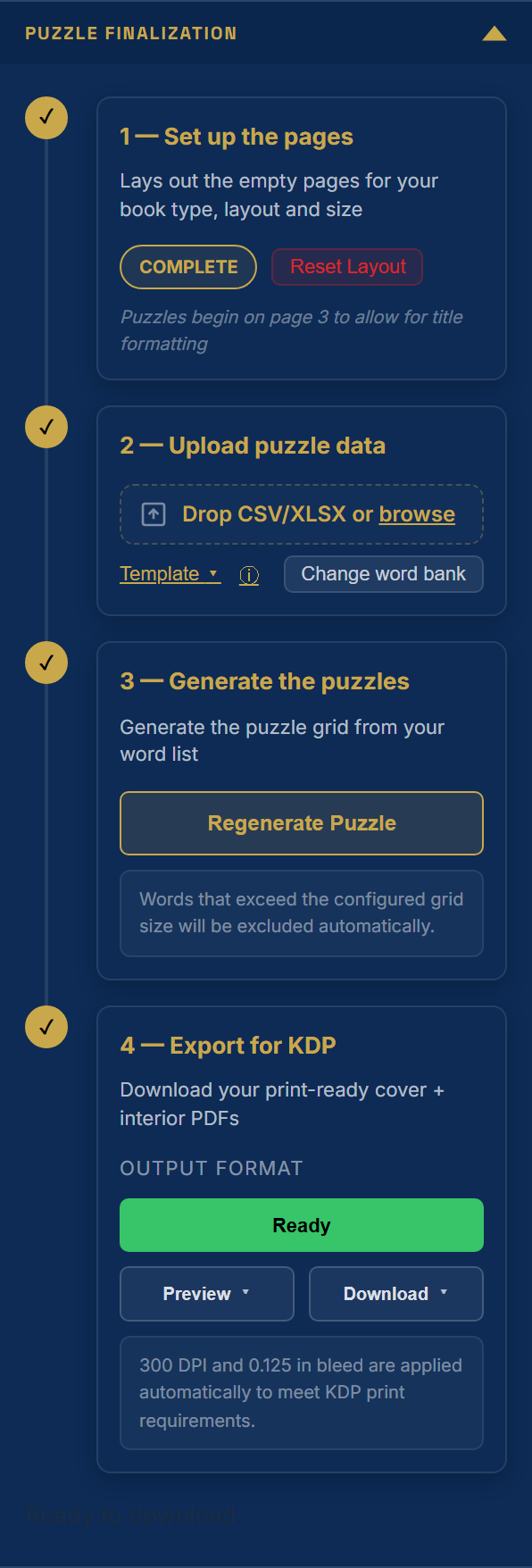
A step stays dimmed, with a note such as Locked until step 2 is done, until the step before it is finished. A book made with the New Project Wizard arrives with its pages set up and its puzzles generated, so those steps are already checked.
A new book: only step 1 is open.A finished book: all four steps checked.
Set up the pages. Press Populate. It lays out empty pages for your book type, layout and size. Puzzles begin on page 3 so the cover and title page can be formatted first. Reset Layout clears the pages so you can pick a different layout and populate again. The Populate button in Project Settings does the same thing.
Upload puzzle data. Drop a CSV or XLSX file on the box, or press browse. Template downloads the matching starter file. For Word Search, Change word bank swaps the words, rebuilds the grids and updates the solutions. See the Templates guide.
Generate the puzzles. Press Generate Puzzle to fill the pages from your data. Regenerate Puzzle rebuilds them. Words that do not fit the grid are left out and reported.
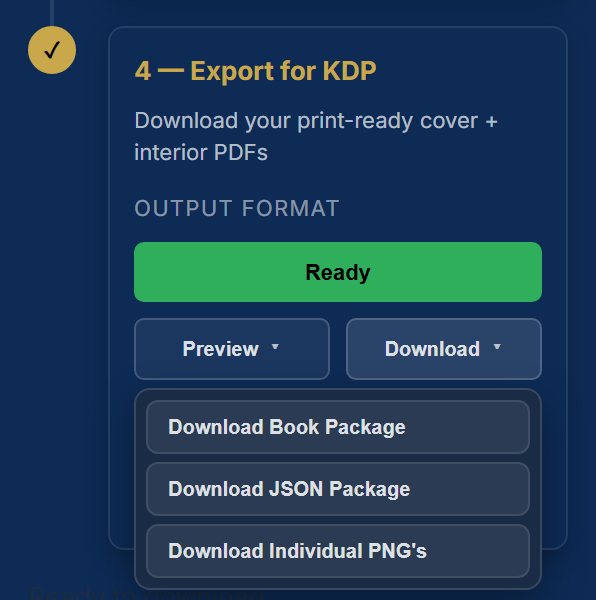
Export for KDP. Press Prep Export to build the cover and interior PDFs and check them against KDP rules. When the button says Ready, use Preview to open a PDF in a new tab, or Download to save a file.
Download Book Package is the cover and interior PDFs. The JSON Package and the individual PNGs are extra formats.
Done when: step 4 reads Ready and you have opened both PDFs.
Finish and publish
Fill in a template and upload your own words
Bring your own words, quotes, clues or images by filling in the starter file that matches your book type.
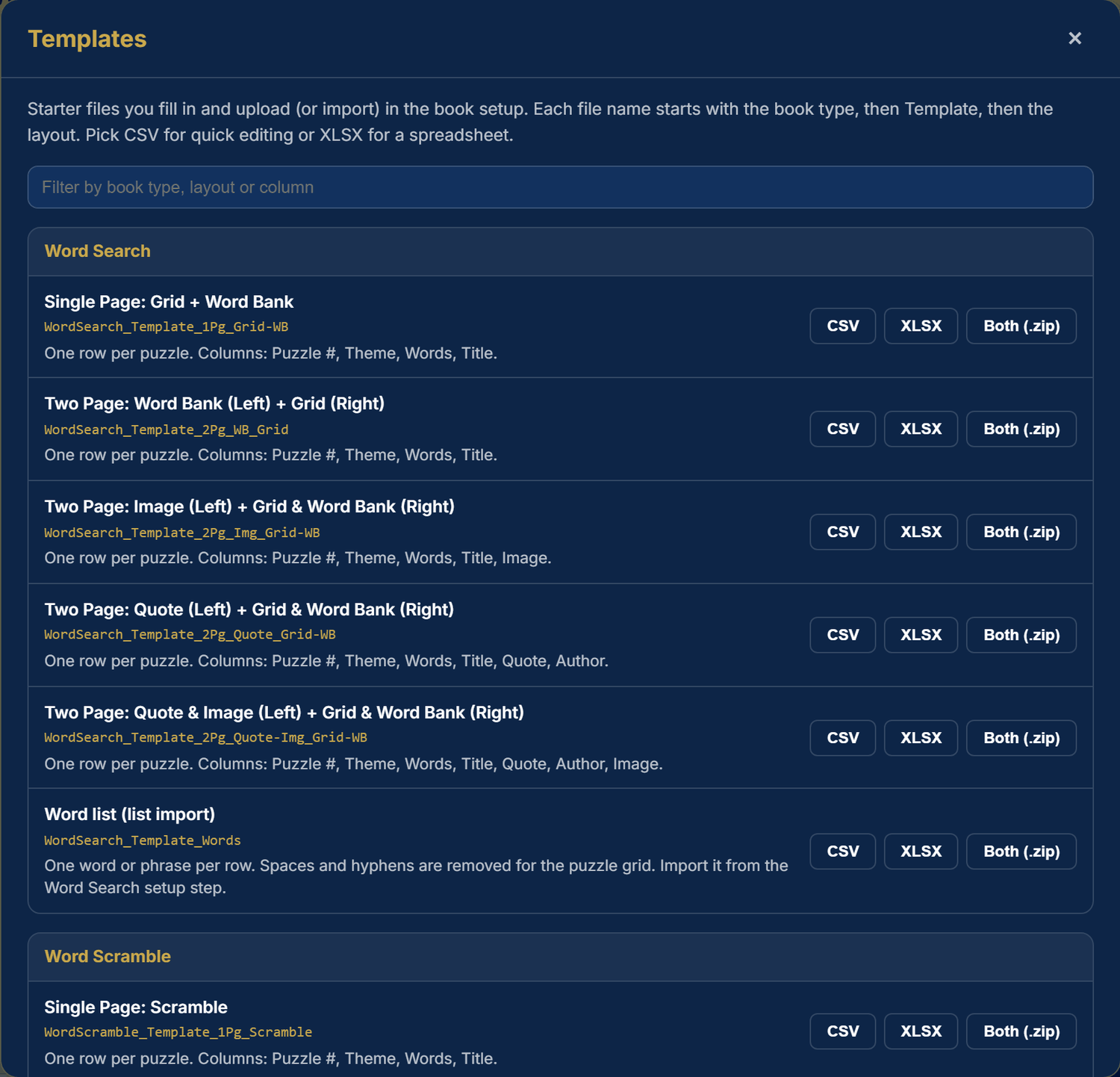
Press Templates in the top bar. Starter files are grouped by book type. Each name starts with the book type, then Template, then the layout.
Pick the one that matches your layout and download it as CSV, XLSX or both in a zip. A line under each name lists the columns, for example Puzzle #, Theme, Words, Title.
Fill in one row per puzzle. Keep the column headings exactly as they are. Separate words with commas. Image columns take the exact file name of a picture already in My Images, or stay blank.
Upload it. In the wizard, choose Upload on the Puzzle Data step. In an open book, use step 2 of Puzzle Finalization.
The Templates window. A filter box at the top narrows the list.
Done when: the number of puzzles loaded matches the number of rows you filled in.
Finish and publish
Save, reopen, and make a copy
Keep your work safe, find it again, and keep an editable copy.
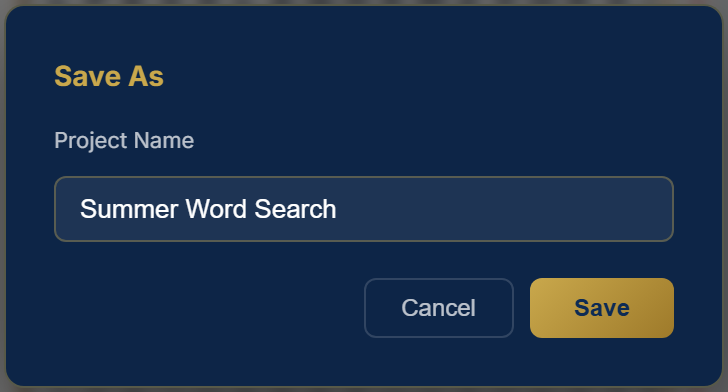
Choose Save → Save. The first time, it asks for a project name. After that it saves where the project came from: a project opened from your account saves to your account, and a project opened from a file on your computer saves to that file. Wait for the confirmation before you close the tab.
The first save, or Save As, asks for a name.
Make a copy with Save As. Use a new name such as the theme plus a version number. This keeps an earlier layout while you experiment.
Keep a copy on your computer.Save → Computer writes a .kkp project file. In Chrome and Edge, a project opened from a file is saved back to that same file. Export ZIP packs an editable backup with every image inside.
Reopen.Open → Open lists the projects in your account. Open → Computer opens a .kkp file.
Each saved project has Edit, Duplicate, Open and a delete button. Duplicate makes a separate copy.
Let autosave help. Autosave starts after the first save or open. Its interval is in Settings. If a tab or the browser closes by accident, open Puzzle Pro again: a Recover unsaved work window offers your latest edits.
Done when: you know whether the project is stored in your account or in a file, and you have one backup.
Finish and publish
Preview the book and prepare publishing files
Look at the pages the way the printer will, then build the files for KDP.
Save an editable version first. Publishing files are for uploading; the project is for fixing things later.
Press Preview in the top bar. Click through every puzzle, word bank, the title page, the solution pages and the cover with the guides hidden. Press Preview again to return to editing.
Preview trims the canvas to the printed page.
Run Zone Check on the cover and fix anything it lists.
Open Puzzle Finalization and go to step 4. Press Prep Export. Read any issues it lists before you continue.
Preview, then Download. Open the interior and the cover PDFs. Check page size, order, margins, clipped text, picture sharpness, and that each puzzle matches its solution.
Correct problems in the project, then export again.
Done when: both PDFs open correctly and every page, including solutions and cover, has been reviewed.
Reference
Account, plans, settings and recovery
Where your account lives, what a plan changes, and what to do when something goes wrong.
Settings
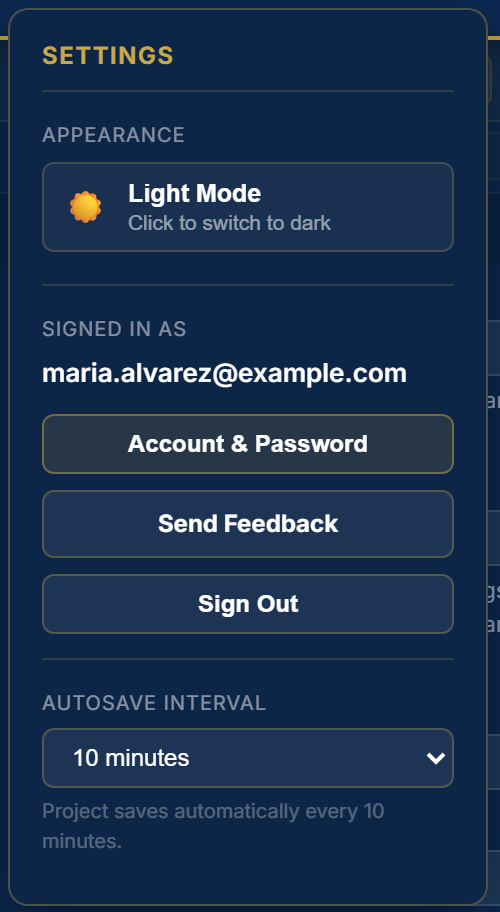
Press the gear in the top bar.
The Settings panel.
Appearance: switch the workspace between light and dark.
Account & Password: opens your profile. Under Security you can set a password. Without one, sign-in uses a code sent to your email.
Send Feedback: opens an email to the team. Include the book type, page number and what you expected.
Sign Out ends the session on this browser.
Autosave Interval: how often a saved project saves itself.
Create an account
Anyone can create an account. On the sign-in screen choose New here? Create an account, enter your email address, choose a password of at least 15 characters, and type the code sent to your email. The first time you sign in, Puzzle Pro asks for your first and last name if either is missing, then shows a Choose your plan screen: press Continue with Free, or pick Starter or Creator (the Have a code? box there takes a free trial code). Then the Start your first book card appears. You see this screen once per account, and you can change your plan any time from Upgrade. Creating an account means you agree to the Beta Terms and the Privacy Notice, which are linked on that screen. Next time you can sign in with your password, or with an emailed code if you never set one.
Plans and billing
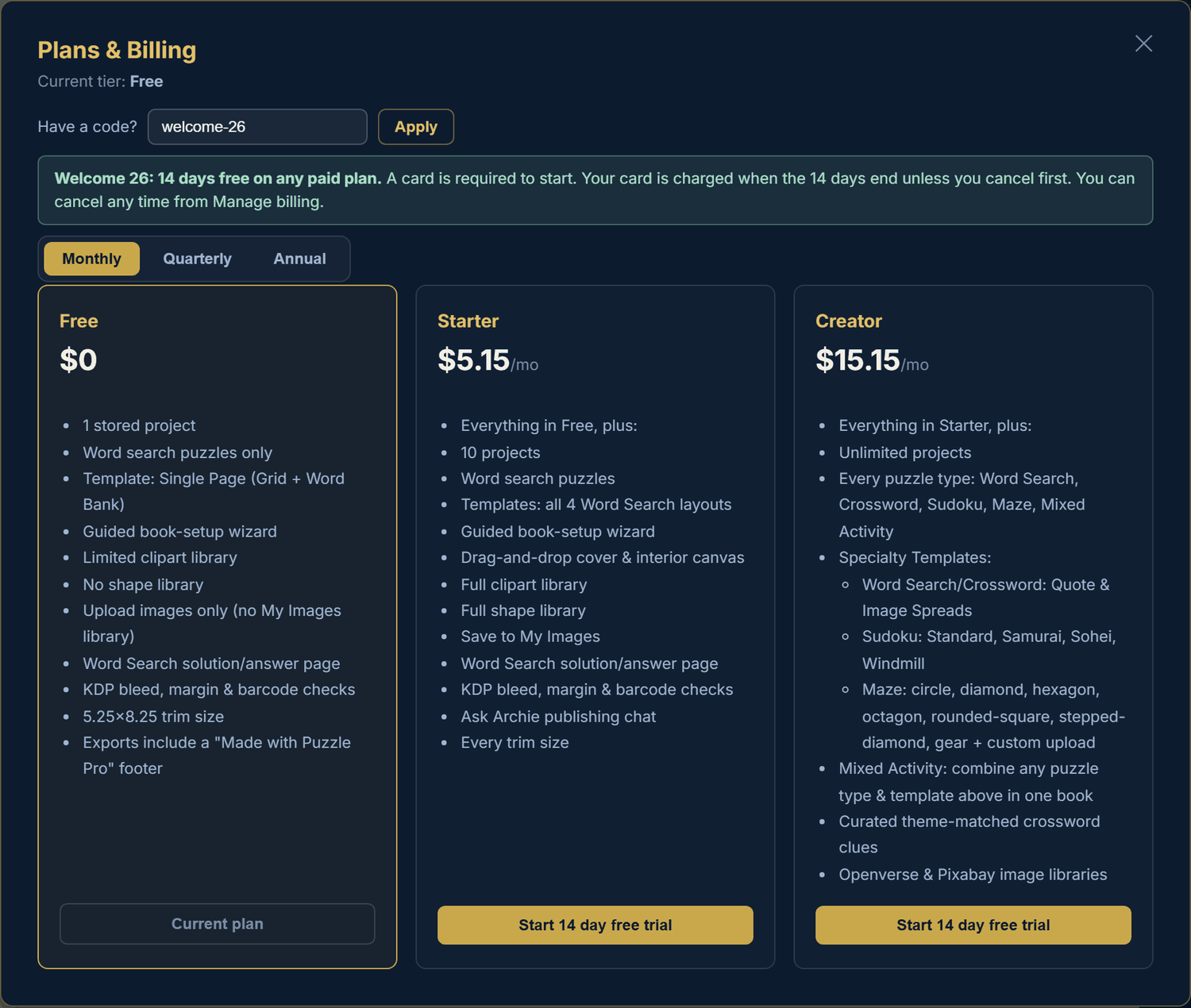
Press Upgrade to see what each plan includes: how many projects you can keep, which puzzle types and layouts you can use, clipart and shape access, trim sizes, and whether exports carry a "Made with Puzzle Pro" footer.
Free trial with a code
The welcome offer gives you a paid plan free for 14 days. It is good through December 31, 2026.
Press Upgrade. If your account is on the Free plan and has never subscribed, a Have a code? box shows at the top.
Type welcome-26 and press Apply. A green note confirms the trial and the plan buttons change to Start 14 day free trial. A link ending ?offer=welcome-26 opens this window with the code already applied.
Choose Starter or Creator. A card is required to start the trial. Your card is charged when the 14 days end unless you cancel first.
To cancel, open Plans & Billing and press Manage billing. Cancel before the trial ends and you are not charged.
The welcome offer in Plans & Billing.
There is one trial per account, and it is only for accounts that have not subscribed before. A code that has ended, or a wrong code, says so under the box.
Ask Archie
Archie is the chat helper above the Pages panel. Ask about KDP sizes, how a feature works, or how to set up a type of book. Archie answers in text and cannot change your book.
Recovery and help
Closed by accident: reopen Puzzle Pro. A Recover unsaved work window offers your latest edits.
Slow first load: after a quiet spell the server can take a minute or two to wake up. A banner says so. Wait; the app retries on its own.
Need a walk-through: press the gold App Tour button, or Help in the top bar.
The Help window. Every guide on this page is one click away.
Reference
Every book type at a glance
Choose a Book Type in the wizard. Each one has its own setup step and its own pages. Your plan decides which are open to you.
Book type
What you get
Words or data from you
Word Search
A letter grid with a word bank on each page. Single page, or two page layouts with a quote or an image.
Generated from a topic, your template, or the curated library
Hidden Message Word Search
A word search whose unused letters spell a message.
Typed in the Hidden Message Puzzles step, or filled by its generator
Word Scramble
Scrambled words to unscramble.
Generated, or your own list
Word Ladder
Change one letter at a time to get from one word to another.
Optional word pairs
Cryptogram
Coded quotes to decode.
Phrases in the Cryptogram Text step, typed or generated
Crossword
A crossword grid with Across and Down clues, and an answer page.
Generated, your own answers and clues, or the curated library
Codeword
A crossword where each letter is a number.
Optional own words
Number Search
A grid of digits with number strings to find.
Optional own numbers
Sudoku
Standard 9 x 9, plus Samurai, Sohei and Windmill formats, with a difficulty mix.
None
Kids Sudoku
Smaller grids with kid-friendly pages.
None
Kakuro, Calcudoku, Picture Logic
Number sum puzzles, cage arithmetic grids, and picture grids you fill by clues.
None
Maze
One maze a page in a shape you choose, with solutions.
None
Geometry Maze, Educational Path Maze
Maze variants with their own setup step and settings.
Educational Path Maze can take your own spelling words
Matching
Pairs to connect.
Per the setup step
Gratitude Journal, Faith Gratitude Journal
Journal pages in a layout you choose in Journal Setup.
None
Mixed Activity
Several puzzle types in one book, each with its own settings.
Per game
Smart Book Builder
A whole book from a recipe, with dividers between sections.
A recipe and a seed
The four guides below show real generated pages, a puzzle and its answer, for the most common types.
Book type · Word Search
Create a themed Word Search book
Build a book from a topic or your own word lists, then check each grid against its word bank and solution.
Choose New → New Project Wizard, then Word Search. Set a title, trim size and a puzzle count of at least 20. A single page layout is the simplest; a two page layout adds a quote or a picture.
Choose your content. Word Generator for a topic, Curated Library for prepared sets, or Upload with the template. Review how many puzzles loaded.
Set difficulty. Easy, Medium, Hard, or a mix split evenly. Check that your longest word fits the grid. Words that cannot fit are left out.
Include solutions at 1, 4 or 6 to a page, review the summary, and create the book. For layouts with images, use the image file name from the template and make sure the picture is in My Images.
Inspect the pages. Check that the grid is full and the word bank has the intended words. Adjust Grid Letters, Word Bank and Solutions fonts in Puzzle Formatting.
Check the answers, save and export. Compare a few solution pages with their puzzles, then follow the save and export guides.
A generated puzzle: letter grid and word bank.Its answer page, four to a page.
Done when: every intended word is accounted for, text is readable, and each puzzle has the right solution.
Book type · Mazes
Build a Maze book
Choose a shape, a difficulty and a style, then check that every maze has a clear start, finish and solution.
Choose New → New Project Wizard, then Maze. Pick a trim size and puzzle count. A maze book needs no word list.
Pick a shape in Maze Shape. Compare the outlines and start with a simple one such as the rectangle.
Review Puzzle Settings. Choose the difficulty and drawing style. Keep the defaults until the first result fits your readers.
Respect blocked choices. If the wizard will not allow a center goal for a shape, choose another goal or shape.
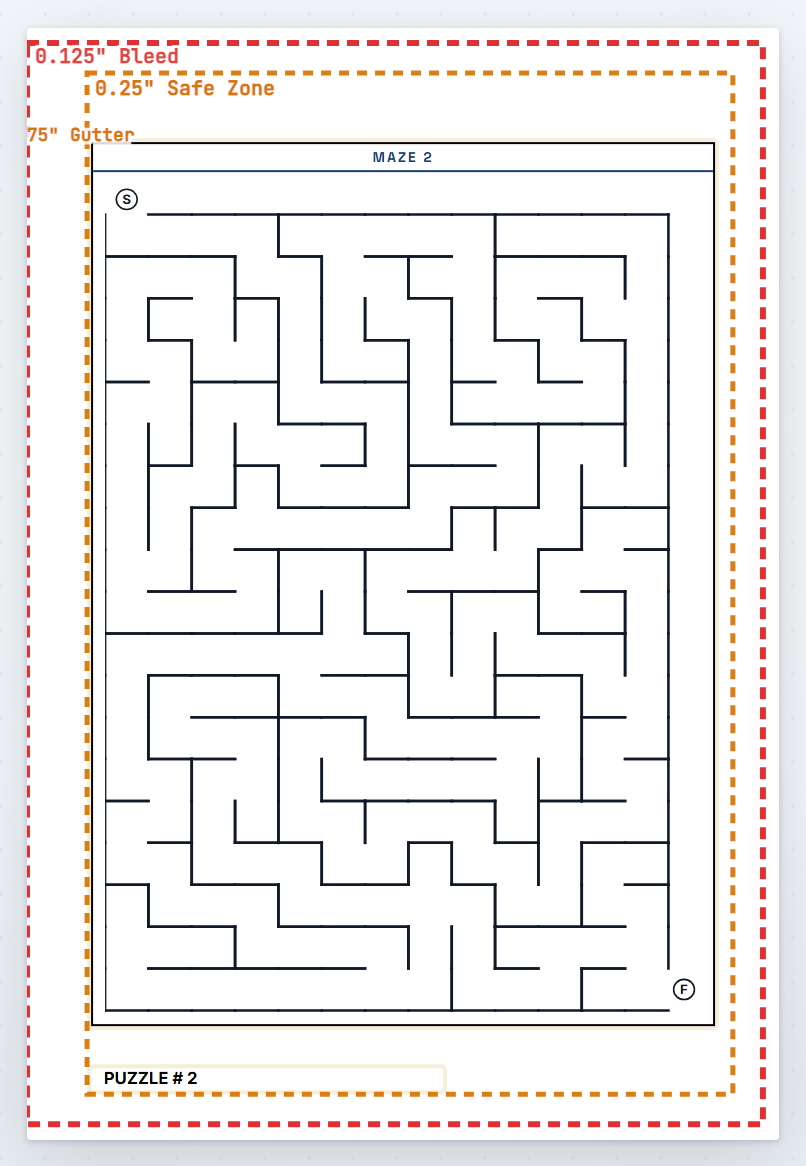
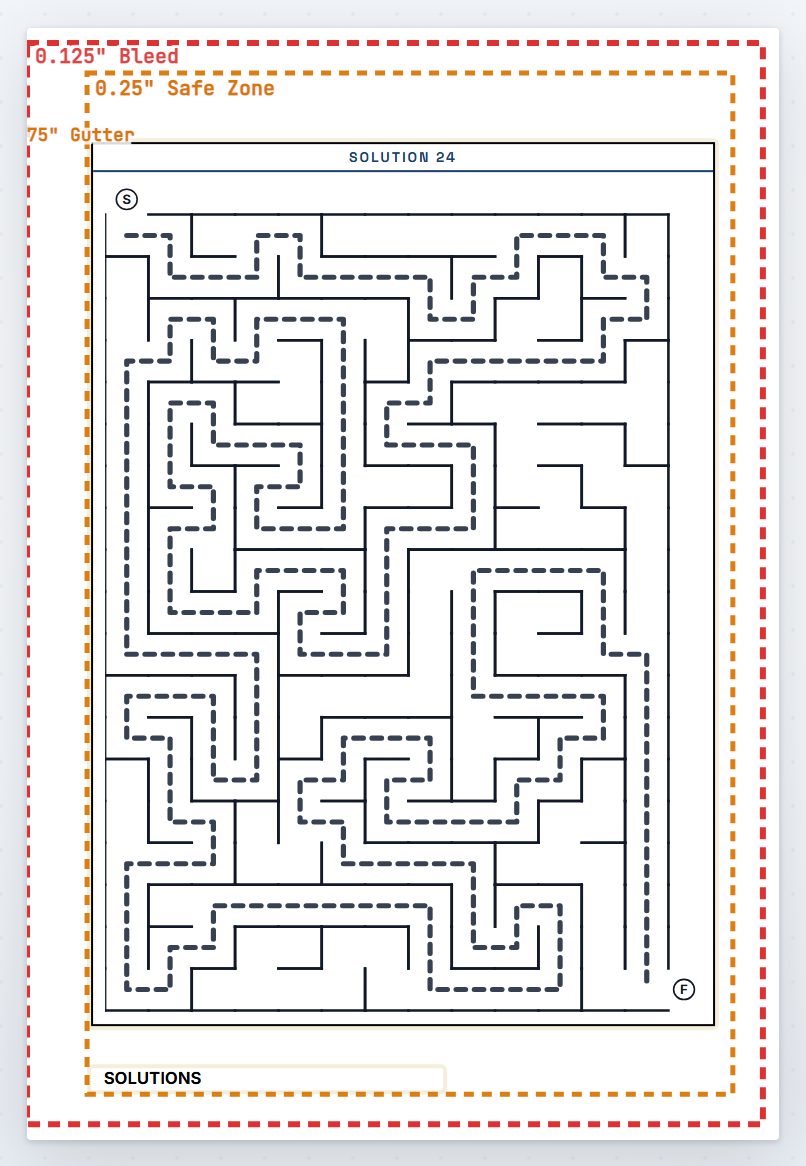
Inspect a maze and its solution. Check the start (S) and finish (F), wall contrast and passage width. For a black and white interior, check it makes sense without color.
Look at several mazes, not just the first, then save and export.
A maze page.A solutions page in the same book.
Done when: the start and finish are clear, paths print at a usable width, and each solution matches its maze.
Book type · Crosswords
Create a Crossword book with useful clues
Supply or generate answers and clues, then check that the printed clues agree with the numbered grid.
Choose New → New Project Wizard, then Crossword. Select the size, layout and puzzle count. Start small so you can read the clues.
Pick a content source on Puzzle Data: Word Generator with a topic, your own answers and clues from the Crossword template, or the curated library. A Word Search template does not carry clues.
Review the words and clues. Fix spelling, remove repeated answers and make sure each clue points to its answer. Do not ask for more distinct puzzles than the source can supply.
Finish the wizard and open a puzzle page.
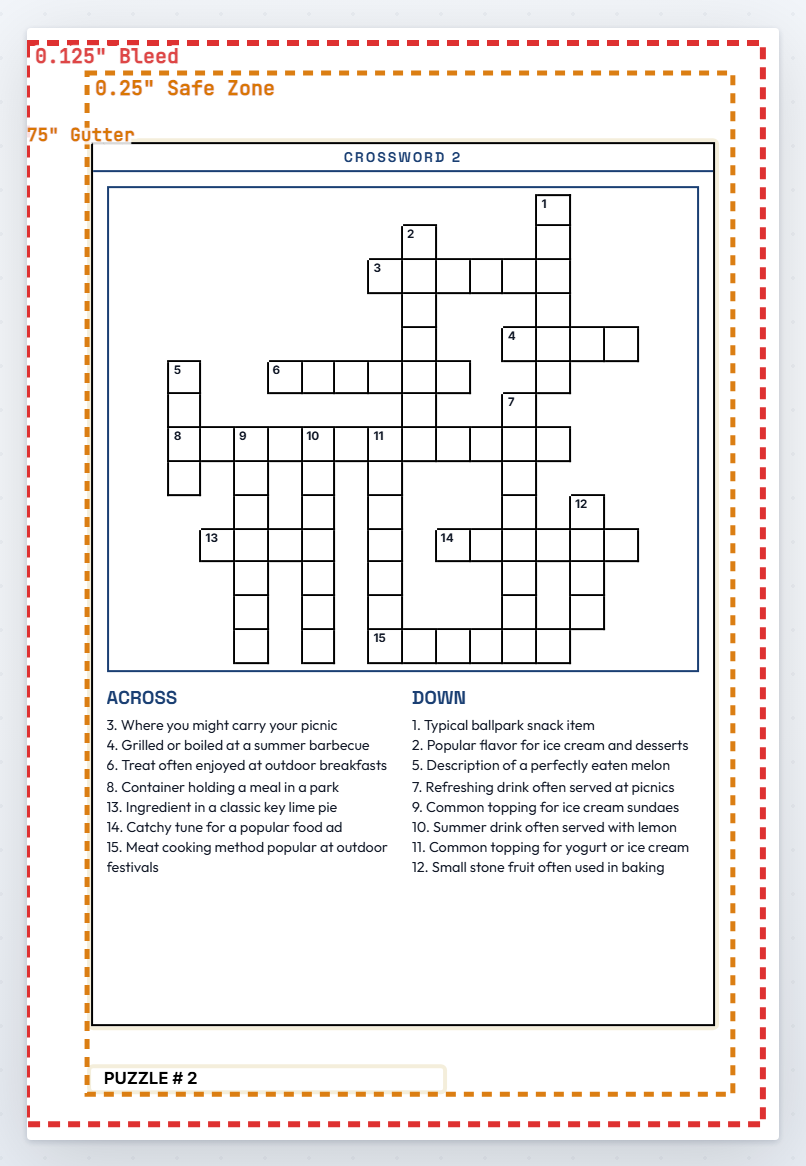
Read the clues, not only the grid. Check numbering, Across and Down placement, clipped clue text and the gap between the grid and the lists.
Compare the solution page, then save and export.
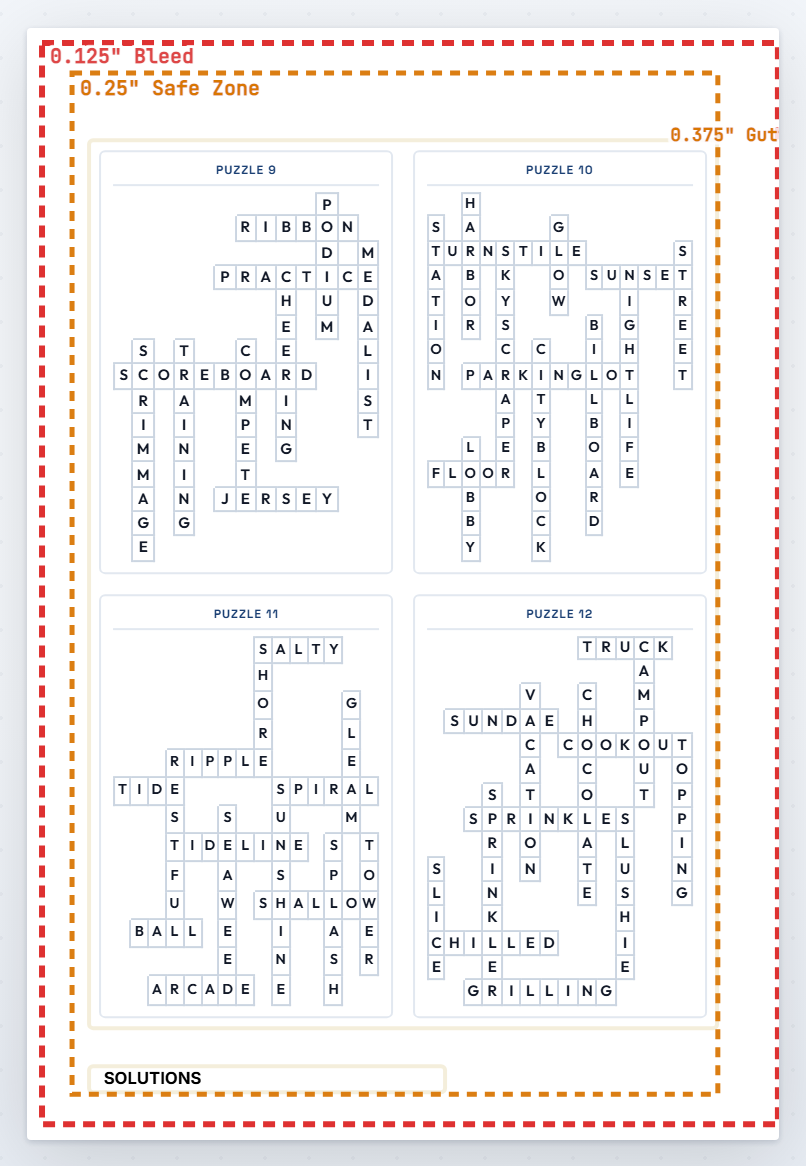
A crossword page: grid on top, clues below.The answer pages show solved grids.
Done when: clue and grid numbers match, each answer fits, and clue text is legible in the exported file.
Book type · Sudoku
Create a Sudoku book
Choose a format and difficulty, generate number puzzles, and check their answer pages. No word list is needed.
Choose New → New Project Wizard, then Sudoku. Pick the trim size and puzzle count. Kids Sudoku is a separate book type.
Choose the format on Sudoku Format. Start with Standard 9 x 9. Samurai, Sohei and Windmill combine several grids on one large page.
Set difficulty. With a mix, make sure the counts add up to the total.
Add facing page content only if your layout uses it. Quote and Image layouts use their own template.
Include solutions and create the book. Check the given numbers, grid lines and blank cells at print size.
Compare a puzzle with its solution, then save and export.
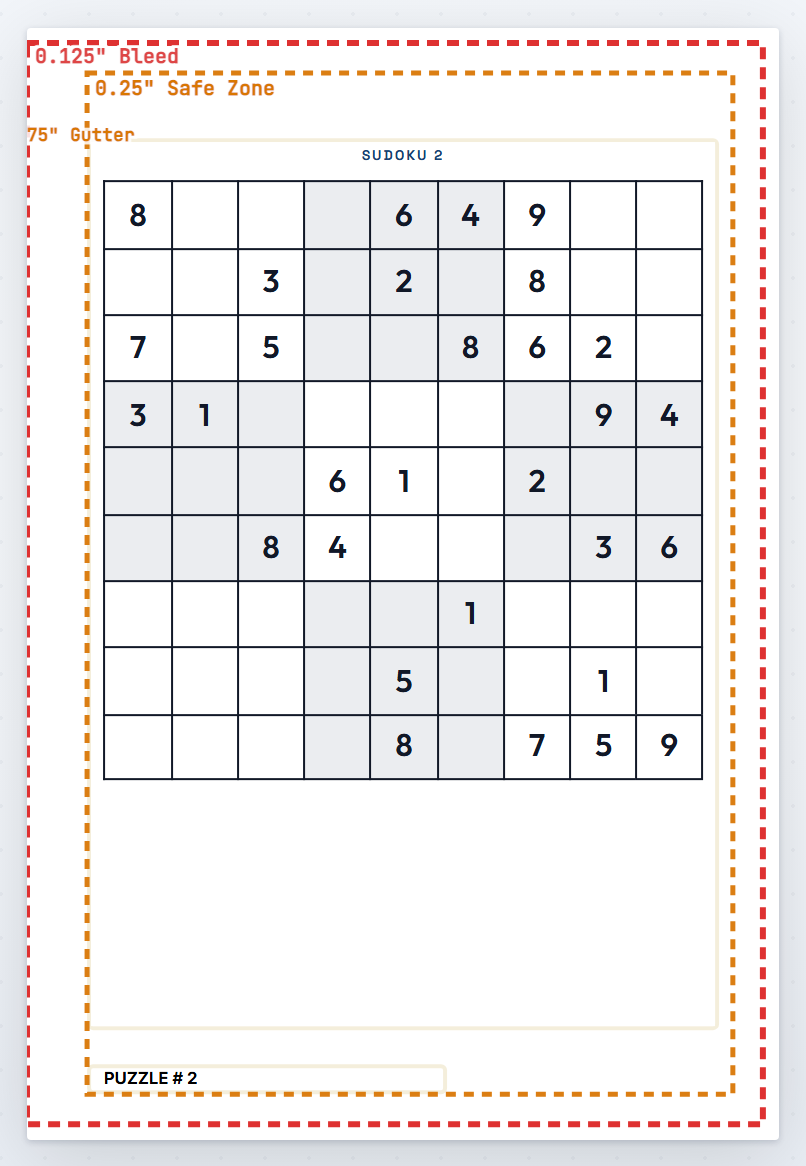
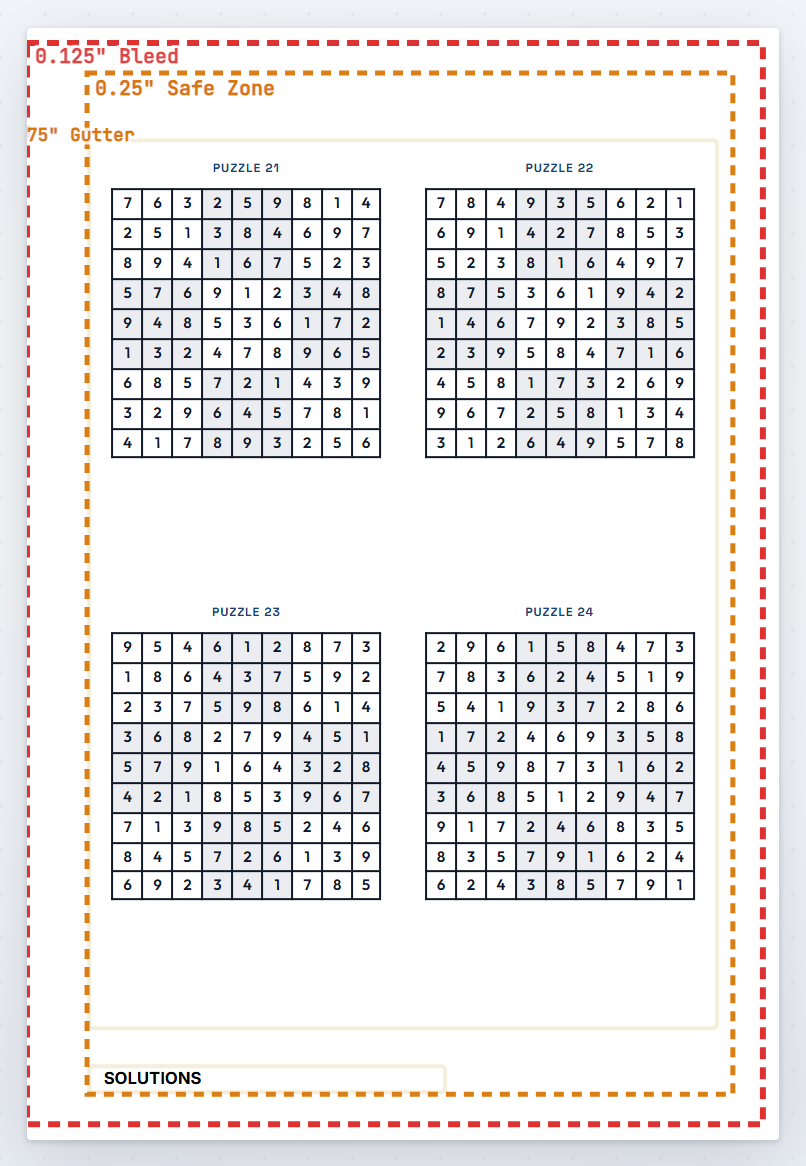
A standard Sudoku page.Its answers, several to a page.
Done when: the format and difficulty counts are right, numbers stay readable, and every puzzle has its solution.
Reference
Plain-language glossary
KDP
Kindle Direct Publishing, Amazon's print on demand service. Puzzle Pro's print rules follow KDP's requirements.
Trim size
The finished page size after the book is cut, for example 6 x 9 inches.
Bleed
Extra picture area, 0.125 in, past the trim line, so a color that runs to the edge never leaves a white sliver. It is cut off in printing.
Safe zone
The area 0.25 in inside the trim. Keep text and anything important inside it.
Gutter
Extra inner margin on the side where pages are bound, so nothing disappears into the fold. It grows with page count.
Spine
The strip between the back and front cover. Its width depends on the page count and the paper.
Barcode dead zone
A 2.0 x 1.2 in box on the back cover that KDP reserves for its barcode. Nothing of yours may overlap it.
DPI
Dots per inch, a picture's sharpness. 300 DPI at the printed size is the target.
Layer
One item on a page, such as a text box, a picture or a grid. Layers stack like paper.
Inspector
The panel on the right with settings for the book and the selected item.
Populate
Build the empty pages for a book from its settings. It is step 1 of Puzzle Finalization.
Reset Layout
Clear the generated pages so a different layout can be populated.
Generate Puzzle
Fill the pages with real puzzles from your data. It is step 3 of Puzzle Finalization.
Word bank
The list of words printed under a Word Search grid.
Prep Export
Build the cover and interior PDFs and check them against KDP rules.
.kkp file
A Puzzle Pro project file you can keep on your computer and open again later.
Autosave
Saving a project by itself on a timer, once it has been saved or opened once.
Global Canvas Edit
A switch that lets a change on one page be offered to matching items across the whole book.
Preview
A view at print size with the guide lines hidden.
Reference
Keyboard shortcuts and print specs
Shortcuts
Keys
Does
Ctrl or Cmd + Z
Undo
Ctrl or Cmd + Shift + Z, or Ctrl or Cmd + Y
Redo
Ctrl or Cmd + D
Duplicate the selected item
Ctrl or Cmd + Delete or Backspace
Delete the selected item
Esc
Close a menu, a window or the App Tour
Print specs the app uses
Item
Value
Bleed
0.125 in on every bleed edge
Safe zone
0.25 in inside the trim
Barcode dead zone
2.0 x 1.2 in, 0.25 in from the trim corner
Spine width, white paper
0.002252 in per page
Spine width, cream paper
0.0025 in per page
Minimum pages
24
Spine text
Only on books of 100 pages or more
Inner margin (gutter)
24 to 150 pages: 0.375 in. 151 to 300: 0.5 in. 301 to 500: 0.625 in. 501 to 700: 0.75 in. 701 to 828: 0.875 in.
Picture sharpness
300 DPI at the printed size
KDP can change its rules. Check KDP's current requirements before you publish.
Reference
Solve common problems
Next will not move on in the wizard
Read the message near the bottom of the dialog. It names what is missing, for example a topic, an uploaded file, or a mix whose counts do not add up.
Steps 2, 3 or 4 in Puzzle Finalization are dimmed
Each step waits for the one before it, and the dimmed step says which one. Do step 1 first: press Populate.
The Cover Composer says KDP needs 24 pages
KDP prints paperbacks of at least 24 pages. Raise the number of puzzles in Project Settings, or add pages in the Pages panel, then apply a cover.
The puzzle pages are blank
Select an interior puzzle thumbnail, not the cover or title page. In Puzzle Finalization, check that steps 1 to 3 are done. Uploading words and generating puzzles are separate steps.
Some words are missing from the grid
Check spelling and word length against the grid size. Words longer than the grid are left out. Change the word list, then regenerate on purpose and check the result.
I changed the layout but the pages look the same
Project Settings changes apply when the book is populated. Save a copy, press Reset Layout, then Populate again.
One change affected several pages
Check Global Canvas Edit and whether you changed a book wide setting such as Puzzle Formatting. Undo at once if it was a mistake, then check the page you edited and another page.
Text is clipped or a picture covers other content
Select the item and look at its size and position. Make the text smaller or the box larger, and change the layering with the arrows at the top of the Inspector.
I cannot find my saved project
Check you are signed in to the same account, then use Open → Open. A project saved to your computer opens with Open → Computer. If a save reported a problem, do not assume an account copy exists.
My project will not save to the server
Read the message for a size or account limit. Keep the editor open and save a copy with Save → Computer or Export ZIP. Check that file before you refresh.
The app is slow the first time
After a quiet spell the server needs a minute or two to wake up. A banner says so. Wait; the app keeps trying.
Images are slow to appear
Give the library a moment, then press its refresh button or use Browse. Check your connection before uploading the same picture again.
Something closed before I saved
Open Puzzle Pro again. A Recover unsaved work window offers your latest edits. Choose Restore.
I need more help
Press App Tour next to the logo for a walk-through, Help for the quick start, or ask Archie. For a specific problem, use Send Feedback in Settings and include the book type, the page number, what you expected, and a screenshot. Never include a password or a sign-in code.